

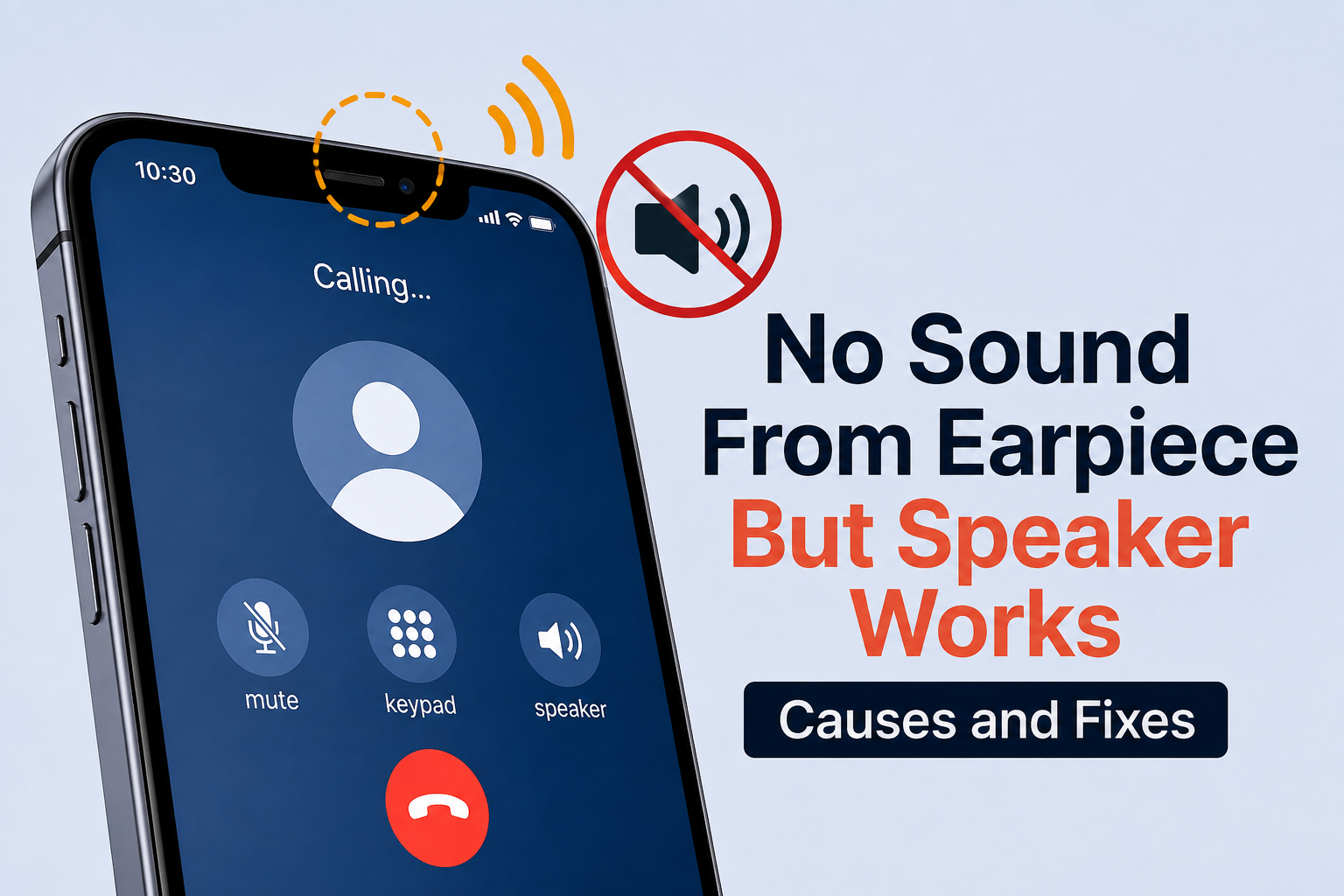
Have you ever answered a phone call only to realize you cannot hear the other person through the earpiece, but everything works perfectly when you switch to speaker mode? This is a frustrating problem that many smartphone users experience on both Android and iPhone devices.
The good news is that this issue does not always mean your phone needs expensive repairs. In many cases, the problem is caused by simple settings, software glitches, dust buildup, or temporary system errors that you can fix yourself.
In this guide, you’ll learn the most common reasons why your phone’s earpiece is not working while speaker mode works normally, along with practical solutions you can try before visiting a repair center.
What Does This Problem Mean?
Your phone has multiple speakers. The small speaker at the top of the device is called the earpiece speaker. It is designed specifically for voice calls when you hold the phone against your ear.
The larger speaker at the bottom or back of the phone is the loudspeaker, which is used for speakerphone, music, videos, and notifications.
If the loudspeaker works but the earpiece does not, the issue is usually limited to the top speaker, related software, or call audio settings.
Common Causes of No Sound From the Earpiece
Several factors can prevent audio from coming through the earpiece.
Dirt and Dust Blocking the Earpiece
Over time, pocket lint, dust, makeup, and other debris can collect inside the tiny speaker grille. Even a thin layer of dirt can reduce the volume significantly or block the sound completely.
This is one of the most common causes, especially for phones that have never been cleaned.
Low Call Volume
Sometimes the call volume has accidentally been reduced to its minimum level.
Since media volume and call volume are controlled separately, your videos may play loudly while phone calls remain almost silent.
Bluetooth Is Still Connected
If your phone is connected to wireless earbuds, headphones, or your car’s Bluetooth system, call audio may be routed there instead of the earpiece.
Even if the Bluetooth device is no longer nearby, the phone may still try to use it.
Software Glitches
Temporary software bugs can interfere with audio routing.
This often happens after system updates, app crashes, or long periods without restarting the device.
Phone Case or Screen Protector
A thick phone case or poorly fitted screen protector may partially cover the earpiece speaker, reducing sound quality.
Although this is less common, it is worth checking.
Water or Moisture Damage
If your phone recently came into contact with water, moisture may temporarily affect the earpiece.
Even water resistant phones can experience temporary speaker issues until the moisture evaporates.
Hardware Damage
If none of the software fixes work, the earpiece speaker itself may be damaged due to accidental drops, aging components, or internal hardware failure.
How to Fix No Sound From the Earpiece
Start with the easiest solutions before assuming there is a hardware problem.
Increase the Call Volume
During an active phone call:
- Press the Volume Up button several times.
- Make sure you are adjusting the call volume rather than the media volume.
- Test the call again.
Many users overlook this simple step.
Restart Your Phone
A restart refreshes system processes and often resolves temporary software glitches.
Simply power off your phone, wait around 30 seconds, and turn it back on.
Clean the Earpiece Speaker
Inspect the earpiece using a flashlight.
If you notice dirt or lint:
- Use a soft, dry toothbrush.
- Gently clean the speaker grille.
- Avoid using sharp metal objects.
- Never pour water or cleaning liquid directly onto the phone.
Cleaning the speaker can dramatically improve audio quality.
Disconnect Bluetooth Devices
Open your Bluetooth settings and disconnect any connected devices.
You can also temporarily disable Bluetooth completely before making another test call.
Remove the Phone Case
Take off your phone case and screen protector if they partially cover the earpiece.
Then make another phone call to check whether the sound has improved.
Update Your Phone
Software updates often include bug fixes for audio and call performance.
Check for updates by opening:
Android: Settings > Software Update
iPhone: Settings > General > Software Update
Install any available updates and restart the device afterward.
Test the Earpiece
Try using different apps that use the earpiece, such as:
- Regular phone calls
- WhatsApp voice calls
- Messenger calls
- FaceTime Audio (iPhone)
If the earpiece fails in every app, the issue is more likely hardware related.
Check for Water Damage
If the phone recently got wet:
- Turn it off if possible.
- Allow it to dry naturally.
- Keep it in a dry, well ventilated place for at least 24 hours.
- Avoid using heat sources such as hair dryers.
If the sound returns after drying, moisture was likely the cause.
Reset Network Settings
Occasionally, call related settings become corrupted.
Resetting network settings can solve unusual calling problems without deleting your personal files.
Remember that saved Wi-Fi passwords and Bluetooth connections will need to be set up again afterward.
Factory Reset as a Last Resort
If every software solution fails and you believe the problem started after a system issue, consider performing a factory reset.
Before doing so:
- Back up all important data.
- Sign out of important accounts if necessary.
- Follow your device manufacturer’s backup recommendations.
Only use this option after trying every other solution.
How to Tell if the Earpiece Speaker Is Damaged
Your phone may require professional repair if you notice any of the following:
- No sound from the earpiece in any app.
- Speaker mode works perfectly.
- Cleaning and restarting make no difference.
- The phone was dropped recently.
- Water entered the speaker area.
- The earpiece produces crackling or distorted audio.
A technician can test the speaker and replace it if necessary.
Tips to Prevent Earpiece Problems
Taking care of your phone can reduce the chances of future speaker issues.
Good habits include:
- Clean the earpiece regularly.
- Avoid exposing your phone to excessive dust.
- Keep liquids away from the device.
- Use a quality protective case.
- Install software updates regularly.
- Avoid inserting objects into the speaker grille.
These simple steps help keep your phone’s audio system working properly.
When Should You Visit a Repair Center?
If you have completed every troubleshooting step and still cannot hear calls through the earpiece, professional diagnosis is recommended.
A repair technician can determine whether the problem involves:
- The earpiece speaker
- Audio IC components
- Internal flex cables
- Motherboard damage
- Water damage inside the device
Early repairs can prevent additional damage and may reduce repair costs.
Conclusion
If there is no sound from your phone’s earpiece but speaker mode works normally, don’t assume the phone is permanently damaged. In many situations, the issue is caused by dust buildup, incorrect settings, Bluetooth connections, software glitches, or temporary moisture.
Begin with the simplest fixes, such as increasing call volume, restarting the phone, cleaning the earpiece, and checking Bluetooth connections. If those steps do not solve the problem, updating the software or seeking professional repair may be necessary.
Following this guide can help you identify the cause quickly and get your phone working normally again without unnecessary expense.
Frequently Asked Questions
Q1. Why can I only hear calls on speaker mode?
Answer:
This usually happens because the earpiece speaker is blocked, damaged, muted, or affected by a software issue. Bluetooth connections and low call volume can also cause the problem.
Q2. Can dust stop my phone’s earpiece from working?
Answer:
Yes. Dust, lint, and debris can block the small speaker grille and significantly reduce or completely block sound. Carefully cleaning the earpiece often restores normal audio.
Q3. How do I know if my earpiece speaker is damaged?
Answer:
If the earpiece produces no sound during regular calls, WhatsApp calls, and other voice apps after trying all troubleshooting steps, the speaker or related hardware may need professional repair.
Q4. Should I replace my phone if the earpiece stops working?
Answer:
Not necessarily. Most cases can be fixed through cleaning, software troubleshooting, or replacing the earpiece speaker, which is often much less expensive than buying a new phone.