

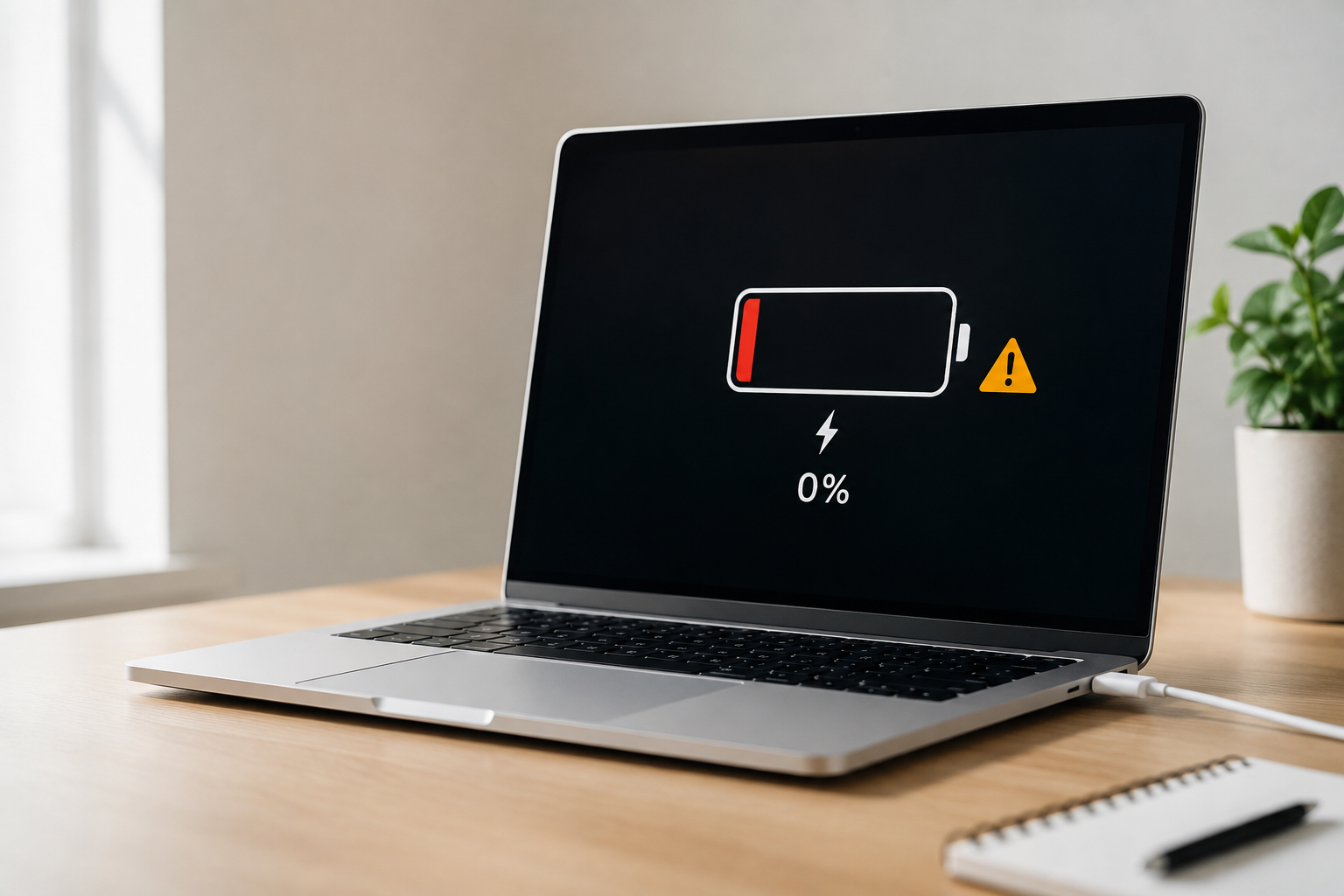
There are few things more frustrating than plugging in your laptop or smartphone, seeing the charging icon appear, and then realizing the battery percentage is not increasing. If your charger is connected but the battery is not charging, the problem could be as simple as a faulty cable or as serious as a failing battery.
The good news is that in many cases, you can fix the issue yourself without replacing your device. This guide explains the most common reasons why your battery is not charging and provides step by step solutions to get it working again.
Why Is My Battery Not Charging Even Though the Charger Is Connected?
When a charger is connected but the battery is not charging, it usually means something is interrupting the charging process. The issue may involve the charging cable, power adapter, charging port, battery health, software, or hardware components.
Before assuming your battery is damaged, work through the troubleshooting steps below.
Check the Power Source First
Sometimes the problem is not your device at all.
Try these quick checks:
- Plug the charger into a different wall outlet.
- Avoid using damaged extension cords or power strips.
- Test the charger in another outlet.
- If possible, use another charger with your device.
If another charger works, your original charger or adapter is likely the problem.
Inspect the Charging Cable
Charging cables wear out over time. Internal wires can break even if the outside looks fine.
Signs of a damaged cable include:
- Loose connection
- Bent connector
- Frayed or exposed wires
- Charger works only at certain angles
Replace damaged cables with high quality or manufacturer approved accessories.
Examine the Charging Port
Dust, lint, and debris often collect inside charging ports, preventing a proper connection.
To inspect the port:
- Turn off the device.
- Shine a flashlight into the charging port.
- Look for dirt or bent pins.
- Carefully remove lint using a wooden toothpick or soft brush.
- Never use metal objects that could damage the connector.
A clean charging port often solves charging problems immediately.
Restart Your Device
Software glitches can sometimes stop the charging process.
Restarting refreshes the operating system and resets background services that may interfere with charging.
After restarting:
- Connect the charger again.
- Wait a few minutes.
- Check whether the battery percentage starts increasing.
Check Battery Health
Every rechargeable battery has a limited lifespan.
If your device is several years old, the battery may no longer hold a charge effectively.
Common signs of battery wear include:
- Battery drains quickly
- Device shuts down unexpectedly
- Battery percentage jumps suddenly
- Charging stops before reaching 100%
- Device becomes unusually warm
Many laptops and smartphones provide built in battery health information through system settings.
Make Sure the Device Is Not Overheating
Most modern devices stop charging when temperatures become too high.
If your device feels hot:
- Disconnect the charger.
- Remove any thick protective case.
- Move to a cooler environment.
- Let the device cool for 20 to 30 minutes.
Once the temperature returns to normal, reconnect the charger.
Update Your Operating System
Software bugs occasionally affect charging performance.
Check for available updates:
Windows
Go to:
Settings > Windows Update
Install all available updates and restart your computer.
macOS
Open:
System Settings > General > Software Update
Install any pending updates.
Android
Open:
Settings > System > Software Update
iPhone
Open:
Settings > General > Software Update
Keeping your software updated helps resolve compatibility and charging issues.
Check Battery Charging Limits
Many laptops now include battery protection features that intentionally stop charging before reaching 100%.
For example, some manufacturers limit charging to:
- 60%
- 80%
- 85%
This helps extend battery lifespan.
Check your manufacturer’s battery management application to see whether charging limits are enabled.
Update Battery Drivers (Windows)
If you use a Windows laptop, outdated battery drivers may prevent proper charging.
To reinstall battery drivers:
- Press Windows + X.
- Open Device Manager.
- Expand Batteries.
- Right click Microsoft ACPI-Compliant Control Method Battery.
- Select Uninstall Device.
- Restart your computer.
Windows will automatically reinstall the driver.
Test With Another Charger
Not every charger provides enough power.
Some chargers may fit your device but deliver insufficient wattage.
Always check:
- Charger voltage
- Power output
- Wattage compatibility
Using the original charger supplied with your device is always the safest option.
Disconnect High Power Accessories
External devices consume battery power while charging.
Disconnect accessories such as:
- External hard drives
- USB hubs
- Gaming controllers
- Multiple monitors
- Docking stations
After disconnecting them, reconnect your charger and monitor battery performance.
Perform a Battery Calibration
Sometimes the battery meter becomes inaccurate.
Battery calibration may help.
General calibration process:
- Charge the battery to 100%.
- Keep it plugged in for another hour.
- Unplug the charger.
- Use the device until the battery is nearly empty.
- Charge it back to 100% without interruption.
This helps the operating system correctly estimate battery capacity.
Check for BIOS or Firmware Updates
Laptop manufacturers occasionally release firmware updates that improve charging performance.
Visit your manufacturer’s support website and search for:
- BIOS updates
- Firmware updates
- Battery management updates
Only install updates designed specifically for your device model.
Signs Your Battery Needs Replacement
Sometimes the battery has simply reached the end of its life.
You may need a replacement if:
- Battery health is below recommended levels.
- Battery will not charge above a certain percentage.
- Battery drains within minutes.
- Device only works while plugged in.
- Battery is swollen or physically damaged.
Never continue using a swollen battery, as it can become a safety hazard.
When Should You Contact a Repair Professional?
If you have tried every troubleshooting step and your battery still refuses to charge, professional diagnosis may be necessary.
Possible hardware problems include:
- Faulty charging port
- Damaged motherboard
- Failed charging controller
- Defective battery
- Internal power circuit failure
An authorized repair technician can identify the exact cause.
Tips to Keep Your Battery Healthy
Good charging habits help extend battery life.
Follow these best practices:
- Use original or certified chargers.
- Avoid exposing your device to extreme heat.
- Keep charging ports clean.
- Do not completely drain the battery regularly.
- Install software updates promptly.
- Enable battery protection features if available.
- Avoid using damaged charging cables.
Small habits can significantly increase your battery’s lifespan.
Conclusion
If your charger is connected but the battery is not charging, do not panic. Most charging issues are caused by simple problems such as faulty cables, dirty charging ports, overheating, outdated software, or battery settings.
Start with the basic checks before assuming the battery has failed. In many cases, replacing a damaged cable, cleaning the charging port, or updating your software is enough to restore normal charging.
If none of these solutions work, the battery or internal charging hardware may require professional repair or replacement.
Frequently Asked Questions
Q1. Why does my charger show connected but my battery percentage stays the same?
Answer:
This usually happens because of a faulty charging cable, dirty charging port, overheating, battery protection settings, outdated software, or a worn out battery.
Q2. Can a bad charging cable prevent my battery from charging?
Answer:
Yes. A damaged cable may still trigger the charging icon but fail to deliver enough power to charge the battery properly. Trying another certified charger is one of the easiest ways to identify the issue.
Q3. Is it safe to keep using a laptop that only works while plugged in?
Answer:
Yes, but it usually indicates that the battery has deteriorated or failed. You can continue using the laptop while connected to power, but replacing the battery is recommended if you need portability.
Q4. How do I know if my battery needs replacing?
Answer:
Common signs include rapid battery drain, charging that stops at a certain percentage, unexpected shutdowns, overheating, swelling, or a device that only works when connected to the charger. If these symptoms persist after troubleshooting, replacing the battery is usually the best solution.