

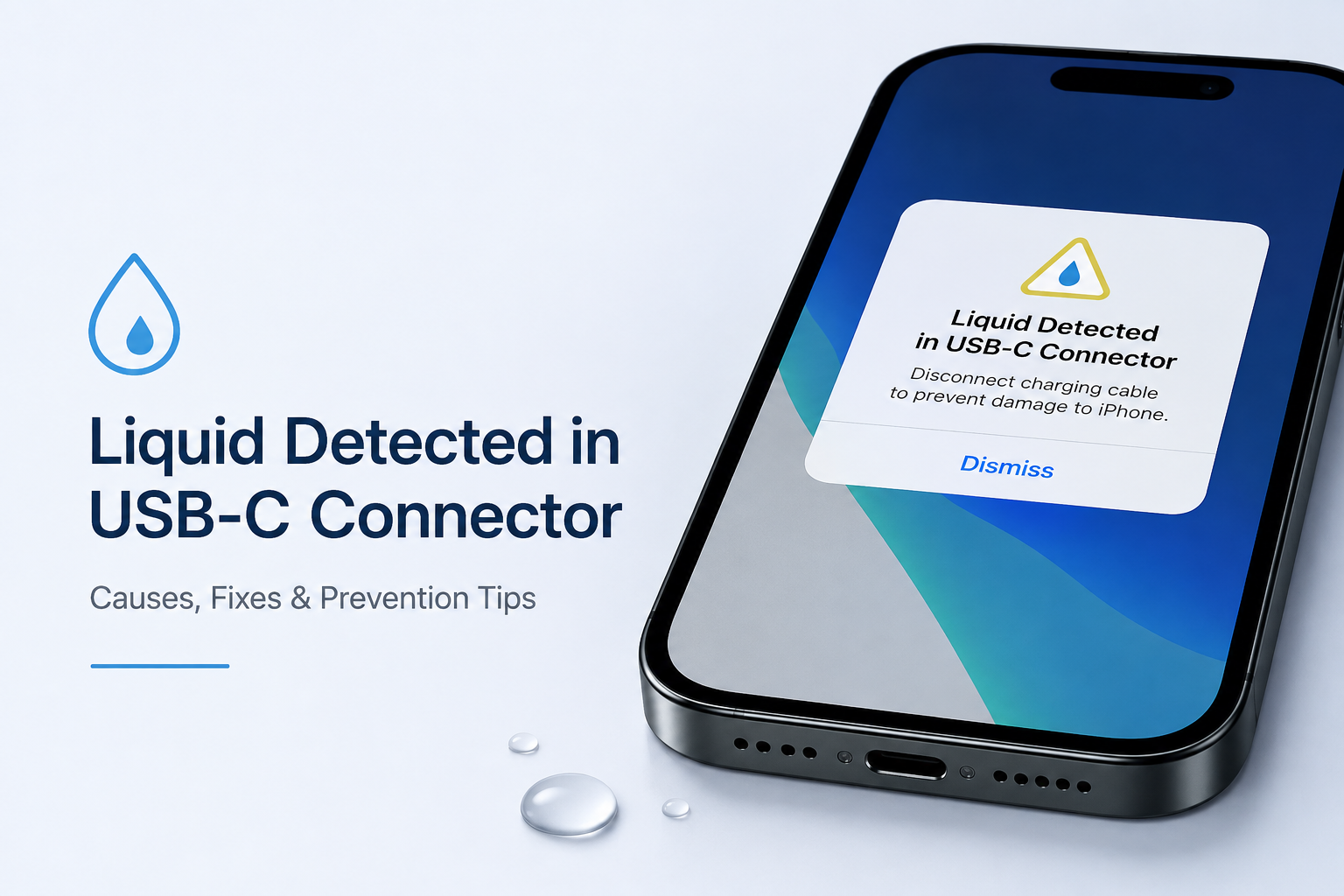
Have you ever plugged your iPhone into a charger only to see the message “Liquid Detected in USB-C Connector”? While it can be frustrating, this warning is actually a built-in safety feature designed to protect your device from damage.
If your iPhone detects moisture in the USB C charging port or the connected cable, it temporarily disables charging to prevent corrosion, short circuits, and permanent hardware damage.
In this guide, you’ll learn why this warning appears, what it means, how to fix it safely, and what you should avoid doing to keep your iPhone in excellent condition.
What Does “Liquid Detected in USB-C Connector” Mean?
The “Liquid Detected in USB-C Connector” message appears when your iPhone senses moisture or liquid inside the charging port or in the connected USB C cable.
Apple includes moisture detection technology in supported iPhone models to prevent electricity from passing through a wet connector. This helps reduce the risk of damaging internal components.
The warning may appear after:
- Accidentally dropping your phone in water
- Using your iPhone in heavy rain
- Exposure to high humidity
- Sweat entering the charging port during workouts
- Condensation caused by moving between hot and cold environments
- Plugging in a damp charging cable
Even a tiny amount of moisture can trigger this safety alert.
Why You Should Not Ignore This Warning
Many users try to force charge their iPhone immediately, but doing so can lead to serious damage.
Charging while moisture is present may cause:
- Corrosion inside the charging port
- Damage to charging pins
- Short circuits
- Charging failures
- Expensive repair costs
It is always safer to let the connector dry completely before charging again.
How to Fix “Liquid Detected in USB-C Connector”
Follow these steps carefully to safely remove the warning.
1. Disconnect the Charger Immediately
As soon as the warning appears, unplug the charging cable.
Leaving the cable connected increases the risk of electrical damage if moisture is present.
2. Dry the Charging Port Naturally
Hold your iPhone with the charging port facing downward.
Gently tap the device against your hand to help remove trapped water.
Then place it in a dry, well ventilated area.
Allow the device to air dry for at least 30 minutes. In many cases, drying may take several hours depending on how much moisture is inside.
3. Inspect the Charging Cable
Sometimes the cable, not the phone, is the problem.
Check the USB C connector for:
- Water droplets
- Dirt
- Dust
- Bent connectors
If the cable is wet, allow it to dry completely before using it again.
4. Use Wireless Charging if Available
If your iPhone supports wireless charging, you can continue charging your phone using a compatible wireless charger while waiting for the USB C connector to dry.
This is the safest temporary solution.
5. Restart Your iPhone
After the charging port has completely dried, restart your iPhone.
Reconnect the charging cable and check whether the warning has disappeared.
6. Wait Longer if Necessary
Some moisture remains hidden deep inside the connector.
If the alert continues, wait several more hours before trying again.
Patience is much safer than forcing the device to charge.
Things You Should Never Do
Many online tips can actually damage your iPhone.
Avoid these mistakes:
- Do not insert cotton swabs into the charging port.
- Do not use a hair dryer or heat gun.
- Do not blow compressed air directly into the port.
- Do not insert paper towels or tissues.
- Do not place your iPhone in uncooked rice.
- Do not force the charging process repeatedly.
These methods can push moisture deeper into the connector or damage delicate components.
Can You Override the Liquid Detection Warning?
Some iPhone models may display an Emergency Override option that allows charging despite the warning.
Although this option exists, it should only be used if absolutely necessary, such as during an emergency when you urgently need battery power.
Using Emergency Override while moisture is still present increases the risk of damaging your device.
Whenever possible, wait until the connector has dried completely.
How Long Does It Take for the Warning to Go Away?
There is no fixed drying time.
Depending on environmental conditions, moisture may disappear within:
- 30 minutes for very light moisture
- 2 to 6 hours for moderate moisture
- Up to 24 hours if significant water entered the charging port
Humidity, temperature, and airflow all affect drying time.
How to Prevent This Warning in the Future
Preventing moisture from entering the charging port is much easier than dealing with the warning later.
Consider these simple habits:
- Keep your iPhone away from water whenever possible.
- Dry your hands before charging.
- Avoid charging immediately after rain exposure.
- Store charging cables in dry places.
- Clean the charging port periodically.
- Use high quality charging accessories.
Small precautions can significantly extend the life of your device.
When Should You Contact Apple Support?
If the warning continues even after waiting 24 hours and the charging port appears completely dry, there may be another issue.
You should seek professional assistance if:
- The warning never disappears.
- The charging port shows visible corrosion.
- Your iPhone refuses to charge.
- The phone overheats while charging.
- The USB C connector appears physically damaged.
A certified technician can inspect the connector and determine whether repairs are necessary.
Conclusion
The “Liquid Detected in USB-C Connector” warning is designed to protect your iPhone from electrical damage. Although it may interrupt charging temporarily, it helps prevent expensive hardware failures.
The safest solution is to disconnect the charger, allow the connector to dry naturally, and avoid using unsafe drying methods. In most cases, the warning disappears once the charging port is completely dry.
Taking a few extra hours to let your device dry properly can save you from costly repairs and keep your iPhone working reliably for years.
Frequently Asked Questions
Q1. Why does my iPhone say “Liquid Detected in USB-C Connector” even though it is dry?
Answer:
Sometimes humidity, condensation, or tiny amounts of moisture that are not visible can trigger the sensor. Dust or debris inside the charging port may also cause false detection. Waiting a few more hours usually resolves the issue.
Q2. Can I still charge my iPhone when this warning appears?
Answer:
It is recommended to avoid wired charging until the connector is completely dry. If your iPhone supports wireless charging, you can use that instead. Emergency Override should only be used when absolutely necessary.
Q3. Does putting my iPhone in rice fix the problem?
Answer:
No. Rice is not recommended because it does not effectively remove moisture and small particles can enter the charging port. Air drying in a well ventilated area is the safest method.
Q4. How can I stop this warning from appearing again?
Answer:
Keep your iPhone and charging cable dry, avoid charging after exposure to water or heavy rain, clean the charging port regularly, and use certified charging accessories to reduce the chance of moisture related alerts.