

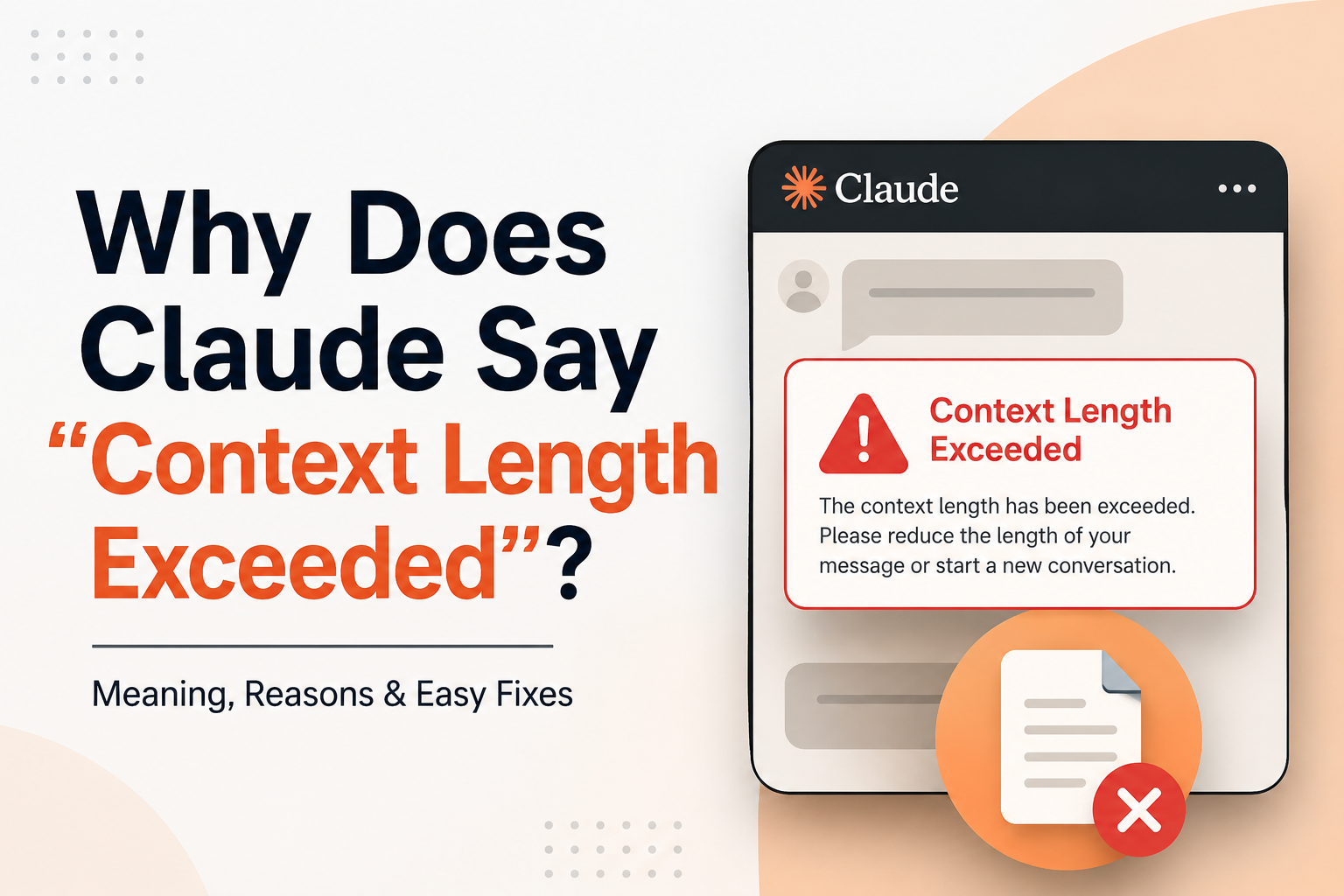
Have you ever spent several minutes writing a detailed prompt in Claude, uploaded an important document, or worked through a long conversation, only to suddenly see the message “Context Length Exceeded”?
It can be incredibly frustrating.
Many users encounter this issue while writing content, analyzing PDFs, reviewing research papers, coding, studying, or working with large documents. Everything appears to be working normally until Claude suddenly refuses to process the next request.
If this has happened to you, you’re not alone.
The good news is that the error usually has a simple explanation. It does not necessarily mean Claude is broken, your account has a problem, or you’ve done something wrong. In most cases, Claude has simply reached the amount of information it can handle within a single conversation.
If you’re searching for Why Does Claude Say Context Length Exceeded, this guide will explain exactly what the error means, why it happens, how Claude’s context window works, and the most effective ways to fix it.
By the end, you’ll know how to avoid this issue and work with Claude more efficiently, even when handling large amounts of text.
Quick Answer
Claude displays the Context Length Exceeded error when the total amount of information in a conversation becomes larger than the model’s available context window. This includes your prompts, Claude’s previous responses, uploaded files, instructions, and conversation history. When the combined content exceeds the available processing capacity, Claude can no longer handle additional information until some content is removed, shortened, or moved into a new chat.
What Does “Context Length Exceeded” Mean in Claude?
In simple terms, Claude can only process a certain amount of information at one time.
Whenever you send a message, Claude doesn’t just look at your latest prompt. It also reviews previous messages, uploaded files, instructions, and earlier responses to understand the full conversation.
All of that information takes up space.
When too much information accumulates, Claude eventually runs out of room to process additional content. At that point, it displays the Claude context length exceeded error.
Think of it like a backpack.
You can keep adding books, notebooks, and folders until the backpack is full. Once there is no space left, you cannot add another item without removing something first.
Claude works in a similar way.
The context window is the backpack, and every prompt, response, and uploaded document takes up some of the available space.
When that space fills up, Claude can no longer continue processing the conversation.
What Is a Context Window?
A Claude context window is the amount of information Claude can keep in memory while generating a response.
It acts like temporary working space.
Whenever Claude responds, it uses information stored within this context window to understand what you’re asking and how it should answer.
For example, imagine you start a conversation by saying:
Help me write a blog about SEO.
You provide keywords, audience details, and writing instructions.
Later, you ask:
Rewrite the introduction and make it more engaging.
Claude understands what introduction you’re referring to because the earlier conversation still exists inside the context window.
The context window may include:
| Content Type | Counts Toward Context |
| User messages | Yes |
| Claude responses | Yes |
| Uploaded files | Yes |
| Instructions | Yes |
| Conversation history | Yes |
As conversations become longer or more documents are added, the context window gradually fills up.
Eventually, there may not be enough space left for new information.
What Are Tokens and Why Do They Matter?
To understand context limits properly, you need a basic understanding of tokens.
What Are Tokens?
AI systems do not measure content the same way humans measure words or pages.
Instead, they use units called tokens.
A token can be:
- A complete word
- Part of a word
- A punctuation mark
- A number
- A symbol
When Claude processes information, it counts tokens rather than pages or paragraphs.
What Are Input Tokens?
Input tokens refer to the information you provide to Claude.
Examples include:
- Prompts
- Questions
- Instructions
- Uploaded file content
- Previous conversation history
Every piece of information you send consumes input tokens.
What Are Output Tokens?
Output tokens are the words Claude generates in response.
For example, if you ask Claude to write a 2,000-word article, Claude needs enough available space not only to understand your instructions but also to generate the article itself.
Why Tokens Matter
Imagine a conference room with a limited number of seats.
Your content occupies some seats.
Claude’s response also requires seats.
If your content fills most of the room, there may not be enough space remaining for Claude to produce a complete answer.
This is why users sometimes experience a Claude long prompt error, even when their prompt seems reasonable.
Why Does Claude Show the Context Length Exceeded Error?
Several situations commonly trigger this error.
Your Prompt Is Too Long
One of the most common causes is an extremely large prompt.
Many users paste:
- Entire books
- Long reports
- Research papers
- Large codebases
- Lengthy transcripts
If the prompt itself consumes too much context space, Claude may not be able to process it.
Even before generating a response, the available context window may already be nearly full.
The Conversation Has Become Too Long
Long conversations gradually consume context space.
Many users forget that Claude remembers earlier messages.
For example:
- You upload a report.
- You ask ten questions.
- Claude gives detailed responses.
- You ask ten more follow-up questions.
- Claude continues responding.
After enough exchanges, the total amount of information becomes very large.
This is a common cause of the Claude conversation too long problem.
Large Files Were Uploaded
Uploaded documents can consume a significant portion of the context window.
Examples include:
- PDFs
- Research papers
- Word documents
- Meeting transcripts
- Technical manuals
Even if your question is short, the uploaded content still occupies context space.
Claude Needs Space for Its Response
Many users focus only on the size of their prompt.
However, Claude also needs room to generate an answer.
Imagine uploading a lengthy report and asking:
Create a detailed 3,000-word analysis.
The report occupies context space, and the requested response requires additional space.
If there isn’t enough room for both, Claude may display an error.
Multiple Documents Were Added
Uploading several documents at once can quickly overwhelm the available context window.
For example:
- A product specification file
- A market research report
- Customer feedback data
- Internal meeting notes
Individually, these documents may be manageable.
Together, they may exceed the available context capacity.
Real Example of a Context Length Exceeded Error
Let’s look at a realistic scenario.
A marketing manager is preparing a quarterly performance report.
They upload:
- SEO audit data
- Google Analytics reports
- Competitor analysis documents
- Content performance reports
After uploading everything, they ask:
Analyze all documents and generate a detailed 4,000-word marketing strategy report.
Claude now needs to:
- Read all uploaded files
- Remember previous instructions
- Analyze the data
- Generate a lengthy response
Because the total information exceeds the available context window, Claude displays a context length exceeded error instead of completing the request.
A better approach would be to analyze each document separately and then combine the findings.
How to Fix the Context Length Exceeded Error
Fortunately, there are several effective solutions.
Shorten Your Prompt
Review your prompt and remove unnecessary information.
Delete:
- Duplicate instructions
- Repeated text
- Irrelevant details
- Excessive background information
A shorter prompt often solves the issue immediately.
Start a New Chat
Starting a fresh conversation is one of the fastest solutions.
A new chat removes the accumulated conversation history and provides more available context space.
Many users solve the problem simply by beginning a new conversation.
Break Large Documents into Smaller Parts
Instead of uploading a huge file, divide it into smaller sections.
For example:
- Introduction
- Chapter 1
- Chapter 2
- Chapter 3
Analyze each section separately.
This approach is particularly effective for books, reports, and research papers.
Summarize Earlier Messages
If a conversation becomes very long, ask Claude to summarize the discussion.
Save that summary.
Then start a new chat and use the summary as your starting point.
This preserves important information while reducing context usage.
Upload Smaller Files
Large files consume more context space.
Whenever possible:
- Upload only relevant pages
- Remove unnecessary sections
- Split large documents into smaller files
This significantly reduces the risk of encountering the error.
Remove Unnecessary Information
Many prompts contain information Claude doesn’t actually need.
Instead of providing every detail, focus on content directly relevant to the task.
This creates a more efficient conversation.
Ask Claude to Process Content in Sections
Instead of requesting a complete analysis all at once, divide the task into stages.
For example:
Step 1: Analyze Chapter 1
Step 2: Analyze Chapter 2
Step 3: Compare findings
Step 4: Create final recommendations
This method is often more reliable than processing everything simultaneously.
Best Practices to Avoid the Error in Future
The best solution is prevention.
Consider adopting these habits:
- Start a new chat for each major project.
- Avoid pasting massive amounts of text into a single prompt.
- Upload only relevant sections of documents.
- Save important summaries outside Claude.
- Use shorter, more focused instructions.
- Break large projects into smaller tasks.
- Process lengthy PDFs chapter by chapter.
- Avoid combining unrelated projects in one conversation.
- Request concise outputs when working with large inputs.
- Periodically start fresh chats during long projects.
Following these practices can dramatically reduce the likelihood of context-related issues.
Claude Token Limits Explained
Many users search for information about the Claude token limit after seeing this error.
A token limit represents the total amount of information Claude can process within a conversation.
The limit generally includes:
- User prompts
- Conversation history
- Uploaded files
- Claude responses
All of these elements share the same available space.
Think of it as a storage container.
If documents occupy most of the container, there is less room available for responses.
If responses become very long, less room remains for future conversation history.
This balance between input and output is what ultimately creates context limitations.
Because AI models evolve over time, token capacities may change across versions. For the latest specifications, it is always best to refer to official Claude documentation.
Claude vs ChatGPT Context Handling
Both Claude and ChatGPT use context windows to manage conversations.
However, there are some differences in how users typically interact with them.
| Feature | Claude | ChatGPT |
| Uses context windows | Yes | Yes |
| Supports long conversations | Yes | Yes |
| Handles uploaded files | Yes | Yes |
| Can reach context limits | Yes | Yes |
| Requires space for responses | Yes | Yes |
| Benefits from shorter prompts | Yes | Yes |
Strengths of Claude
- Strong document analysis capabilities.
- Effective for reviewing lengthy content.
- Handles complex written material well.
Strengths of ChatGPT
- Excellent for interactive conversations.
- Flexible across many use cases.
- Supports a wide variety of workflows.
Limitations of Both
Neither platform has unlimited memory.
Very large conversations, files, and prompts can eventually exceed available context capacity regardless of which platform you use.
Common Mistakes Users Make
Many context-related problems result from avoidable habits.
Common mistakes include:
- Uploading multiple large documents at once.
- Pasting entire books into a single prompt.
- Continuing the same conversation for weeks.
- Requesting extremely long responses.
- Repeating instructions unnecessarily.
- Keeping irrelevant conversation history.
- Combining unrelated projects in one chat.
- Uploading documents larger than necessary.
- Ignoring signs that a conversation is becoming too large.
Troubleshooting Checklist
If Claude suddenly displays a context length error, check the following:
☐ Is your prompt unusually large?
☐ Have you uploaded multiple documents?
☐ Has the conversation become very long?
☐ Are there repeated instructions?
☐ Are you requesting an extremely long response?
☐ Can the task be divided into smaller sections?
☐ Would starting a new chat help?
☐ Can earlier content be summarized?
☐ Can unnecessary files be removed?
☐ Can the request be simplified?
In many cases, these simple checks identify the problem immediately.
Frequently Asked Questions
Q. Can I Increase Claude’s Context Length Limit?
Ans:
In most cases, users cannot manually increase Claude’s context length limit. The available context window depends on the specific Claude model and platform version being used.
If you regularly work with large documents, a better approach is to break content into smaller sections, use summaries, and start new chats when conversations become lengthy. This helps manage context more efficiently and reduces the chances of hitting the limit.
For most users, improving workflow is far more effective than trying to find ways around the limit. Organizing information into smaller chunks typically produces better and more accurate results.
Q. Does Starting a New Chat Fix the Context Length Exceeded Error?
Ans:
Yes, starting a new chat often fixes the error because it removes the previous conversation history from Claude’s working memory.
When a conversation becomes very long, earlier messages, uploaded files, and Claude’s responses continue consuming context space. A fresh chat clears that accumulated information and gives Claude more room to work.
Before starting a new chat, it is a good idea to create a summary of important details. You can then paste that summary into the new conversation and continue working without losing critical context.
Q. Do Uploaded Files Count Toward Context Length?
Ans:
Yes, uploaded files count toward Claude’s context window. Every document Claude reads becomes part of the information it must process.
This includes PDFs, Word documents, spreadsheets containing text, reports, research papers, meeting notes, and other uploaded content. Larger files naturally consume more context space than smaller files.
If you frequently encounter the Claude context length exceeded error, try uploading only the specific pages or sections relevant to your task rather than entire documents.
Q. Why Does Claude Stop Reading Large PDFs?
Ans:
Large PDFs often contain thousands of words, images, tables, references, and formatting elements. All of this information contributes to the total context Claude must process.
If the PDF is too large, there may not be enough remaining context space for additional instructions, follow-up questions, or lengthy responses. As a result, Claude may stop processing the document or display a context length error.
The most reliable solution is to split the PDF into smaller sections and analyze each part separately. This reduces context usage and often improves response quality as well.
Q. What Is the Best Way to Work With Long Documents in Claude?
Ans:
The best approach is to divide long documents into smaller, manageable sections instead of uploading everything at once.
For example, if you have a 100-page report, process it chapter by chapter rather than as a single file. Ask Claude to summarize each section and save those summaries for later use.
Once all sections have been reviewed, you can combine the summaries into a final report or analysis. This method helps avoid context limit issues while making it easier to work with large amounts of information efficiently and accurately.
Key Takeaways
- The Claude context length exceeded error occurs when too much information is packed into one conversation.
- Context includes prompts, responses, uploaded files, instructions, and chat history.
- Long conversations are one of the most common causes.
- Large PDFs and multiple document uploads can quickly consume available context space.
- Claude also needs room to generate responses, not just process inputs.
- Starting a new chat often resolves the issue.
- Splitting documents into smaller sections is one of the most effective solutions.
- Summaries help preserve important information while reducing context usage.
- Better prompt management can prevent future errors.
Conclusion
Seeing the Context Length Exceeded message can be frustrating, especially when you’re in the middle of an important task. Whether you’re writing content, analyzing research, reviewing PDFs, or working with large datasets, the interruption can feel unexpected.
Fortunately, the cause is usually straightforward. Claude has simply reached the maximum amount of information it can process within the current conversation. The issue is typically related to long prompts, extensive chat histories, uploaded files, or requests that require large responses.
Understanding how the Claude context window, Claude token limit, and conversation memory work can help you avoid these problems entirely. By shortening prompts, breaking documents into smaller sections, creating summaries, and starting new chats when needed, you can work more efficiently and keep Claude performing at its best.
Once you understand how context limits work, you’ll be able to handle large projects with far fewer interruptions and make much better use of Claude’s capabilities.