

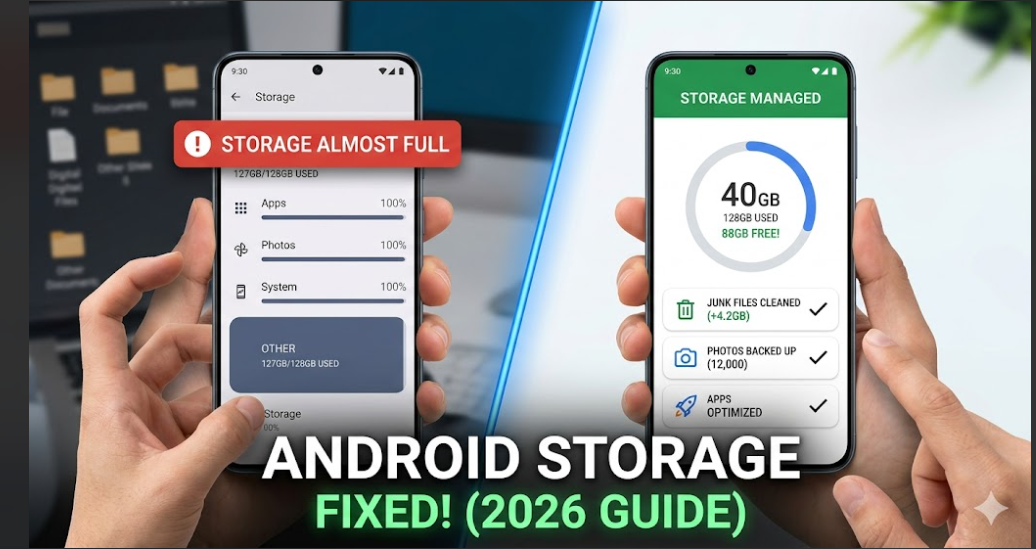
We’ve all been there. You’re about to capture a once-in-a-lifetime video or download that new app everyone is talking about, and then it happens. A grey notification pops up like an uninvited guest: “Storage space running out.”
Suddenly, your phone feels sluggish. Apps won’t update, and you’re frantically deleting photos of your dog just to make room for a system update. It’s frustrating, but here is the good news: you don’t need a new phone. Most of that “full” space is occupied by digital clutter you don’t even know exists.
In this guide, we’re going to perform a deep clean. Whether you’re on a Samsung, Pixel, or Xiaomi, I’ll show you how to reclaim your space and make your Android feel brand new again.
Quick Fix for Impatient Readers
If you need space right now to take a photo or download a file:
- Open Google Files (or your default File Manager).
- Tap Clean.
- Select Delete Junk Files.
- Go to WhatsApp > Media and delete “Sent” videos (they are duplicates!).
- Clear Browser Cache in Chrome settings.
Why is My Phone Storage Full Anyway?
Before we fix it, let’s understand the “Why.” Modern Android versions (especially Android 14, 15, and 16) are efficient, but apps have become “heavier.”
- The “Other” Category: This is usually a mix of system logs, app resources, and temporary files.
- High-Res Media: 4K videos and RAW photos eat gigabytes in minutes.
- App Cache: Apps like TikTok, Instagram, and Spotify “stream” data but save it locally so things load faster later.
- Hidden Duplicates: Downloading the same PDF three times or having identical memes in five different WhatsApp chats.
Step 1: The “Low-Hanging Fruit” (Beginner)
1. Identify the Space Hogs
Don’t guess where the space went. Let your phone tell you.
- Go to Settings > Storage.
- Wait for the breakdown to load.
- Pro Tip: Look at “Games” and “Social Media.” These are almost always the biggest culprits.
2. Clear the App Cache
The “cache” is a collection of temporary files. While it helps apps run faster, it can grow to massive proportions.
- Go to Settings > Apps.
- Select a heavy app (like YouTube or Instagram).
- Tap Storage & Cache > Clear Cache.
- Warning: Do NOT tap “Clear Data” unless you want to log back in and reset the app’s settings.
3. Use the “Files by Google” App
If your phone didn’t come with it, download it from the Play Store. It uses AI to identify blurry photos, large files, and unused apps that are safe to delete.
Step 2: Intermediate Fixes (The Deep Clean)
1. Manage Your Messaging Media
WhatsApp, Telegram, and Signal are storage silent killers. They save every “Good Morning” GIF and viral video sent to you.
- The Fix: Open WhatsApp > Settings > Storage and Data > Manage Storage.
- You can see exactly which chat is taking up the most space and delete videos larger than 5MB.
2. Offload Photos to the Cloud
You don’t need 5,000 photos stored locally.
- Use Google Photos or OneDrive.
- Once backed up, use the “Free up space” feature in Google Photos. This deletes the local copy on your phone but keeps the one in the cloud.
3. Delete “Ghost” Apps
We all have those apps we downloaded once for a discount code and never used again.
- Go to the Play Store > Profile Icon > Manage apps & device.
- Tap Manage > Sort by “Least used.”
- Select and uninstall.
Step 3: Advanced Optimization (For the Pros)
1. Tame the “Other” or “System Data”
On Samsung (One UI) and Xiaomi (HyperOS), the “System” category can sometimes look suspiciously large.
- The Fix: Often, this is actually the Recycle Bin. In your Gallery app and File Manager, ensure you empty the “Trash” or “Bin.” Files stay there for 30 days, still occupying space.
2. Disable Pre-installed Bloatware
Some system apps can’t be deleted, but they can be Disabled. This prevents them from updating and growing in size.
- Settings > Apps > [App Name] > Disable.
3. Change Camera Settings
If you aren’t a professional photographer, you don’t need “High Efficiency” or “ProRAW” settings turned on 24/7.
- Lower your video recording from 4K to 1080p for everyday clips.
Troubleshooting: Storage Comparison by Brand
| Feature | Samsung Galaxy | Google Pixel | Xiaomi / Redmi |
| Tool Name | Device Care | Storage | Cleaner / Security App |
| Recycle Bin | Gallery & My Files | Google Photos/Files | Hidden in Gallery |
| Duplicate Finder | Built-in (My Files) | Via Files by Google | Built-in Cleaner |
Myth vs. Fact
- Myth: Deleting text messages saves a lot of space.
- Fact: Text is tiny. Unless you have thousands of MMS (video/image) messages, deleting texts won’t help much.
- Myth: Using an SD card makes your phone faster.
- Fact: Actually, cheap SD cards are slower than internal storage and can make your phone feel laggy. Use SD cards for media, not apps.
- Myth: “RAM Boosters” free up storage.
- Fact: RAM is memory, not storage. These apps often take up more storage than they “save.”
Mistakes to Avoid
- Deleting System Folders: Never delete folders like .Android or .sys unless you want to factory reset your phone by accident.
- Using “Cleaner” Apps with Heavy Ads: Many free cleaners on the Play Store are actually adware that slows down your phone further. Stick to official tools.
Preventive Measures for 2026
- Auto-archive Apps: In Android 15/16, enable “App Archiving.” It removes the app but keeps your data, saving up to 60% space.
- Stream, Don’t Download: Use Spotify or Netflix to stream instead of keeping gigabytes of MP3s and MP4s offline.
- Monthly Maintenance: Set a calendar reminder to “Empty the Trash” once a month.
Frequently Asked Questions (FAQ)
Q: Why does my phone say storage is full after I deleted everything?
A: Check your “Trash” or “Recycle Bin” in both the Gallery and File Manager apps. Also, clearing the cache of apps like TikTok and Spotify can reclaim gigabytes that “Other” storage hides.
Q: Is it safe to delete the “.thumbnails” folder?
A: Yes. These are just small previews of your images. Your phone will recreate them as needed, but deleting them can provide a temporary space boost.
Q: Can a virus cause “Storage Almost Full” problems?
A: Rarely, but some malware generates logs or downloads background files. If your storage fills up within minutes of cleaning it, run a scan using Google Play Protect.
Conclusion: Take Action Now
The Android storage full fix isn’t about one single button; it’s about managing your digital habits. Start by clearing your WhatsApp media, moving photos to the Cloud, and emptying your Recycle Bin.
If you do these three things today, you’ll likely reclaim 5GB–10GB of space instantly. Your phone