

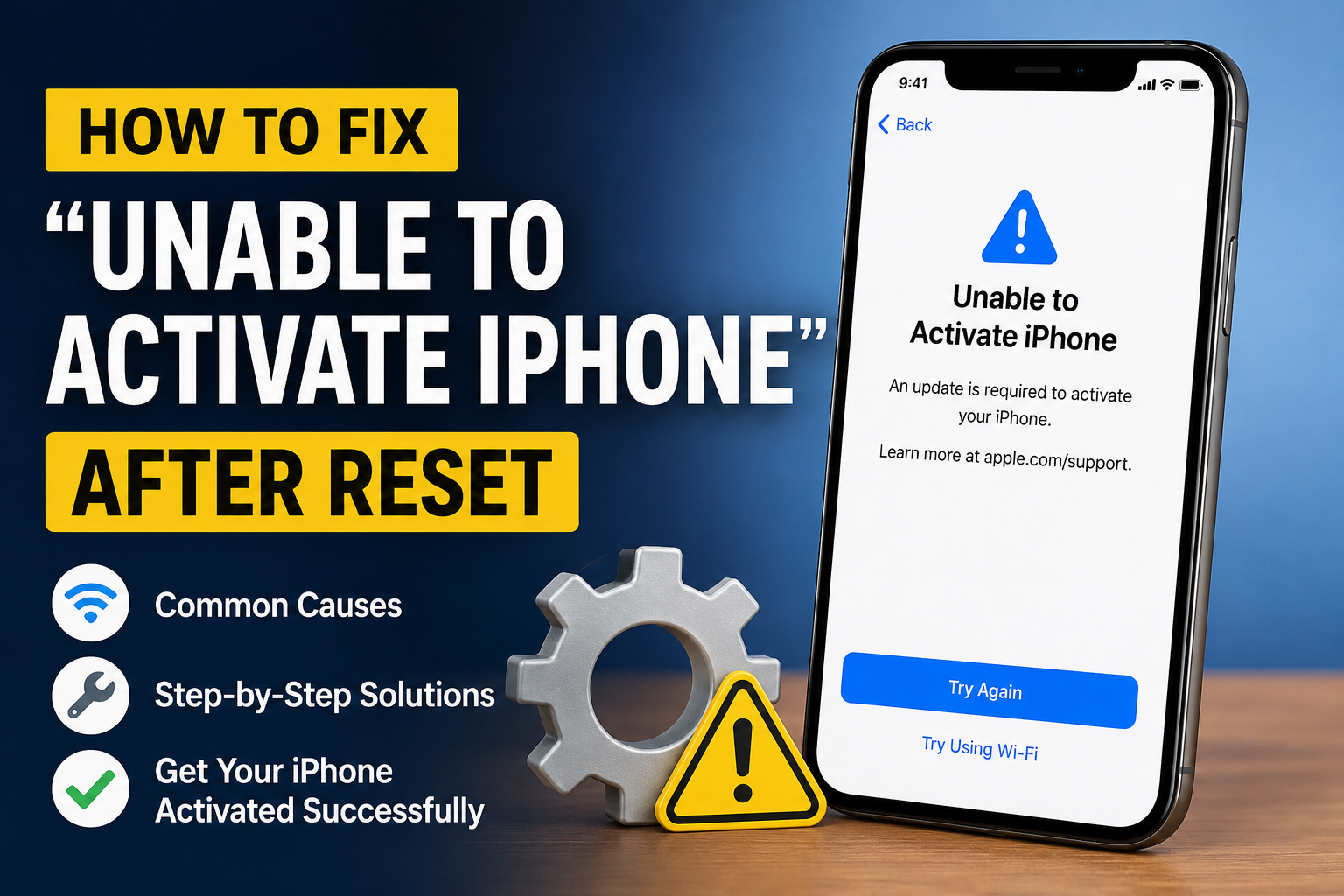
Resetting your iPhone should give you a fresh start, but seeing the “Unable to Activate iPhone” error can quickly turn a simple process into a frustrating experience. Whether you performed a factory reset, restored your device, or bought a used iPhone, this activation issue can prevent you from accessing your phone.
The good news is that, in most cases, the problem can be fixed without replacing your device. This guide explains the most common causes of the error and provides step by step solutions to help you activate your iPhone successfully.
What Does “Unable to Activate iPhone” Mean?
When you reset an iPhone, it must connect to Apple’s activation servers to verify the device before it can be used. If this verification fails, you may see messages such as:
- Unable to Activate
- Activation Could Not Be Completed
- Your iPhone Could Not Be Activated Because the Activation Server Is Unavailable
- Activation Lock Screen
This error simply means your iPhone cannot complete the activation process due to a network, software, hardware, or account related issue.
Why Does This Error Happen?
Several factors can trigger activation problems after resetting an iPhone.
Common reasons include:
- Poor or unstable internet connection
- Temporary Apple activation server issues
- Incorrect Apple ID credentials
- SIM card problems
- iOS software bugs
- Activation Lock enabled
- Hardware issues affecting communication with Apple’s servers
Understanding the cause makes it much easier to find the right solution.
Check Apple’s Activation Servers First
Before changing settings on your device, confirm that Apple’s activation servers are working normally.
Sometimes Apple performs maintenance or experiences temporary outages that prevent new device activations.
If the servers are unavailable, wait for some time and try activating your iPhone again later.
Connect to a Stable WiFi Network
Activation requires a reliable internet connection.
If your WiFi is weak or unstable:
- Move closer to the router.
- Restart your router.
- Connect to another trusted WiFi network.
- Avoid public WiFi with login portals.
If WiFi is unavailable, you can also try activating using a mobile data connection if your carrier supports it.
Restart Your iPhone
A simple restart often resolves temporary software glitches.
To restart:
- Turn off your iPhone.
- Wait about 30 seconds.
- Turn it back on.
- Try the activation process again.
Many activation issues disappear after a fresh reboot.
Reinsert or Replace the SIM Card
Your SIM card helps Apple verify your carrier information.
Try the following:
- Remove the SIM card.
- Clean it gently with a soft cloth.
- Insert it back properly.
- Restart the iPhone.
If possible, test with another compatible SIM card to determine whether the original card is causing the issue.
Verify Your Apple ID and Password
If your iPhone requests your Apple ID during activation, make sure you enter the correct credentials.
Double check:
- Apple ID email address
- Password
- Two factor authentication code if prompted
If you’ve forgotten your password, reset it before attempting activation again.
Make Sure Activation Lock Is Cleared
If you purchased a second hand iPhone, the device may still be linked to the previous owner’s Apple account.
In this case, you cannot activate the phone until Activation Lock is removed.
The previous owner must:
- Sign out of Find My iPhone.
- Remove the device from their Apple account.
- Erase the device properly.
Without completing these steps, activation cannot continue.
Update or Restore the iPhone Using a Computer
If activation keeps failing, updating or restoring iOS may solve the issue.
On a Mac
- Connect the iPhone using a USB cable.
- Open Finder.
- Select your iPhone.
- Choose Update first.
- If updating fails, choose Restore.
On a Windows PC
- Open Apple Devices or iTunes if required.
- Connect your iPhone.
- Select the device.
- Update the software.
- Restore only if necessary.
Updating keeps your data whenever possible, while restoring erases everything and installs a fresh copy of iOS.
Try Activating Through Recovery Mode
If the device remains stuck on the activation screen, Recovery Mode may help.
Basic steps include:
- Connect the iPhone to your computer.
- Put the iPhone into Recovery Mode according to your model.
- Choose Update when prompted.
- If Update fails, restore the device.
After installation finishes, attempt activation again.
Check the Date and Time Settings
Although newer iPhones usually configure these automatically, incorrect date and time settings may occasionally interfere with activation.
Ensure your device uses the correct region and time zone whenever possible.
Ensure Your Carrier Is Supported
Carrier restrictions can sometimes prevent activation.
Contact your mobile carrier if:
- The SIM card is newly activated.
- Your number was recently transferred.
- Your carrier account has pending verification.
- The SIM is not recognized.
Your carrier can confirm whether the network is preventing activation.
What If Your iPhone Has a Hardware Problem?
In some cases, activation issues are caused by faulty hardware.
Possible hardware faults include:
- Damaged cellular modem
- Logic board failure
- Water damage
- Internal antenna problems
Signs of hardware related activation problems include:
- No IMEI number displayed
- No modem firmware shown
- Constant “Searching” for network
- SIM not detected even with multiple cards
These problems usually require professional diagnosis.
Contact Apple Support
If none of the troubleshooting methods work, contact Apple Support for further assistance.
Be prepared with:
- Your iPhone serial number
- IMEI number
- Apple ID information
- Proof of purchase if requested
Apple technicians can determine whether the issue is software related, account related, or caused by hardware.
Tips to Prevent Activation Problems in the Future
A few simple habits can reduce the chances of facing activation issues after resetting your iPhone.
- Back up your data before resetting.
- Keep your Apple ID information updated.
- Sign out properly before selling your device.
- Use a reliable internet connection during setup.
- Install official iOS updates regularly.
- Avoid interrupting the reset or restore process.
Following these steps helps ensure a smoother activation experience.
Conclusion
The “Unable to Activate iPhone” after reset error can seem alarming, but it is often caused by simple issues such as network problems, incorrect Apple ID details, server outages, or SIM card errors. By checking your internet connection, verifying your Apple account, updating iOS, and ensuring Activation Lock has been removed, you can resolve the problem in most cases.
If the issue continues after trying every solution, it may indicate a hardware fault or an account related restriction that requires assistance from Apple Support. Taking a systematic approach will help you identify the root cause and get your iPhone working again as quickly as possible.
Frequently Asked Questions
Q1. Why does my iPhone say “Unable to Activate” after a factory reset?
Answer:
This usually happens because the iPhone cannot communicate with Apple’s activation servers. Common causes include poor internet connectivity, Apple server outages, SIM card issues, incorrect Apple ID credentials, or Activation Lock.
Q2. Can I activate my iPhone without a SIM card?
Answer:
Some iPhone models can be activated without a SIM card when connected to WiFi, while others require a valid SIM during the activation process. It depends on the device model and carrier requirements.
Q3. How long does iPhone activation usually take?
Answer:
Most iPhones activate within a few minutes. If activation takes longer than 15 to 30 minutes, there may be a network problem, server issue, or another error that requires troubleshooting.
Q4. What should I do if none of the fixes work?
Answer:
If you have tried all recommended solutions and your iPhone still cannot activate, contact Apple Support. They can verify your device status, check your Apple account, and determine whether a hardware repair is needed.