

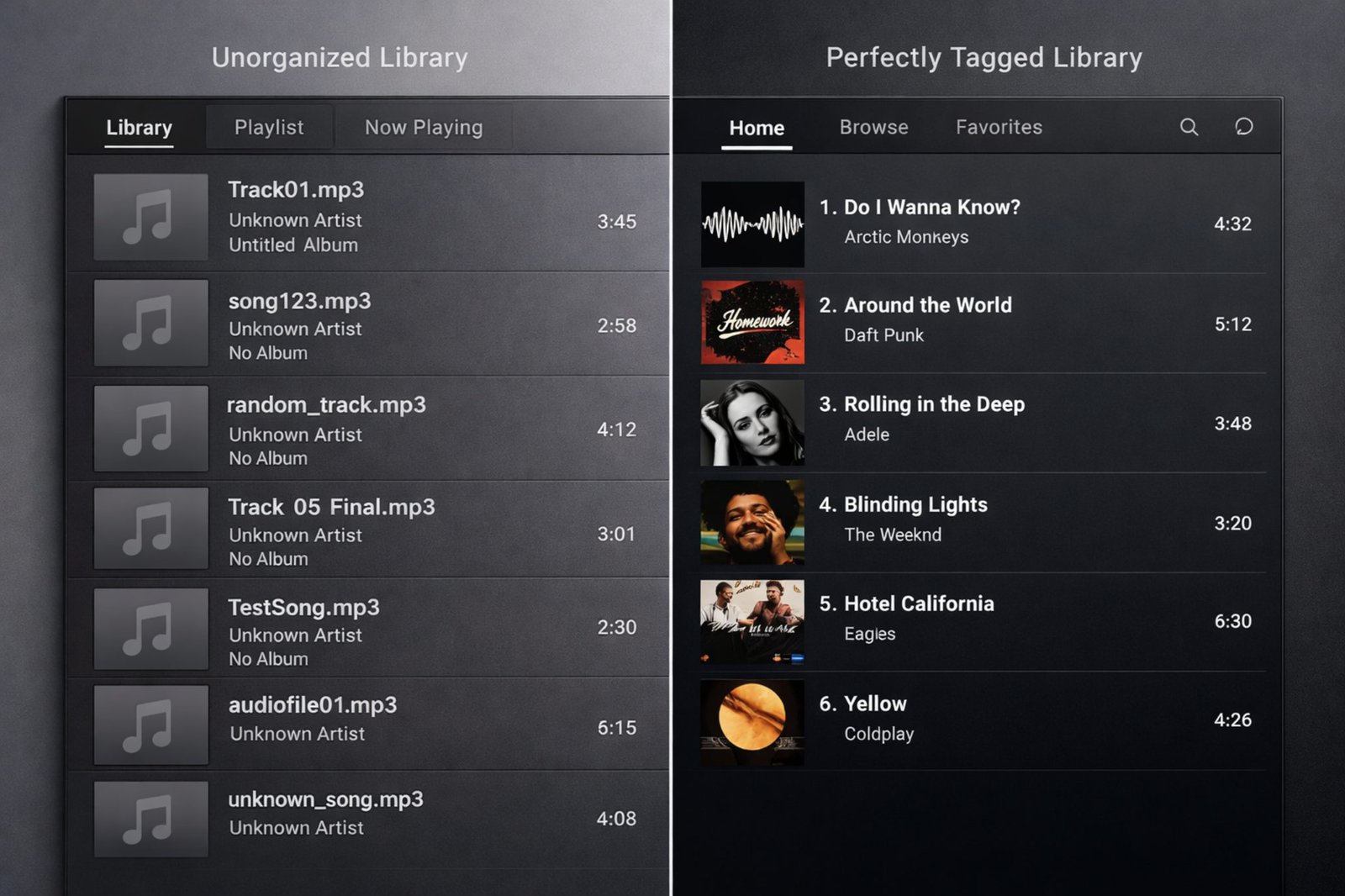
If you’re searching how to fix music metadata, you’re likely dealing with “Unknown Artist,” wrong albums, duplicate artwork, or a media server that refuses to read your tags. The good news is you can fix most libraries in one sitting if you follow a safe, repeatable workflow.
This guide focuses on the real-world problems SERPs often gloss over: huge libraries (1,000+ tracks), Plex/Jellyfin quirks, WAV tagging, phone vs computer artwork mismatches, and the emerging need for AI disclosure fields.
How to fix music metadata: the fast, safe workflow
First, use a workflow that prevents “fixing” one problem while creating three new ones.
Step 1: Back up before you batch edit
Because taggers write directly into files, always make a copy first.
- Copy your music folder to an external drive, or
- Export a library backup from your music manager (if supported)
Next, test changes on a small album before tagging your entire library.
Step 2: Identify what’s actually broken
Different problems need different tools.
Common issues:
- Wrong artist/album: mismatch between tags and filenames
- Track order wrong in car USB: missing track numbers or disc numbers
- Artwork differs on phone vs computer: embedded art vs cached/sidecar images
- Plex ignores local tags: Plex agent/library settings override local metadata
- WAV won’t keep tags: WAV metadata support varies by app
Pick the right tag standard (MP3 vs FLAC vs M4A)
Tag format matters more than most guides admit.
MP3: ID3v2.3 vs ID3v2.4 (why it affects compatibility)
Many car stereos and older devices handle ID3v2.3 better than ID3v2.4. Therefore, if your USB drive shows garbled titles or wrong sorting, save MP3 tags as ID3v2.3.
Key fields to check:
- Artist / Album Artist (often the #1 cause of split albums)
- Track number + total (e.g., 3/12)
- Disc number (for multi-disc releases)
- Year/Date (some players sort by year)
FLAC/OGG/OPUS: Vorbis Comments
FLAC uses Vorbis Comments, not ID3 (in most cases). Because of that, an MP3-only editor may “edit” nothing.
M4A/ALAC: MP4 atoms
Apple ecosystem files store metadata differently. So you want an editor that fully supports MP4 tags.
WAV: tagging is inconsistent
WAV can store metadata (RIFF INFO and other chunks), but many players ignore it. As a result, WAV is a frequent “why didn’t my changes stick?” format.
Best tools to fix music metadata
MusicBrainz Picard vs Mp3tag for large libraries
These are the two names you’ll see most often, and they solve different problems.
MusicBrainz Picard (best for identification)
- Great for fixing wrong releases using AcoustID audio fingerprinting
- Best when filenames are messy or tags are missing
- Download MusicBrainz Picard
- Explore the MusicBrainz database
Mp3tag (best for controlled batch editing)
- Excellent for bulk edits, actions, and field mapping
- Great when you already have “mostly correct” tags and want consistency
- Microsoft Store listing exists for Windows users.
Rule of thumb:
- Use Picard to identify and match releases.
- Use Mp3tag to standardize and clean fields at scale.
“Free download bulk mp3 tag editor Windows 11”
If you want a free bulk MP3 tag editor on Windows 11, start here:
- MusicBrainz Picard (free, strong matching)
- Mp3tag (free for many users; licensing varies by distribution check the official site)
- Avoid random “free download” sites that repackage installers.
How to fix “Unknown Artist” for 1,000+ songs at once
This is where most people waste hours. Instead, do it in two passes.
Pass 1: Get accurate matches using fingerprints
- Add a folder in Picard.
- Click Scan (AcoustID) when files are poorly tagged.
- Review matches before saving.
- Save to write tags.
Picard’s strength is identification. However, it can still pick the wrong release. Therefore, always verify:
- album name
- track count
- label/catalog number (if shown)
- explicit/clean versions
Pass 2: Standardize your fields (Mp3tag)
In Mp3tag, select all tracks and normalize:
- Set Album Artist = main artist (especially for compilations and split albums)
- Fix featuring formatting (e.g., “feat.” vs “ft.”) consistently
- Ensure Track and Disc fields are numeric and complete
- Remove junk fields imported from bad sources
If you’re comparing tools, this “Picard first, Mp3tag second” workflow is the fastest way to fix music metadata for huge libraries.
Automatic album art downloader for local files
Artwork problems often come from one of three places:
- embedded art inside the audio file
- a folder image (like
cover.jpg) - player cache (phone apps and Plex cache aggressively)
Best practice: embed art + keep a folder copy
For reliable playback across devices:
- Embed cover art into each track (or at least each album)
- Also keep a
cover.jpgin the album folder for players that prefer folder art
Tips that prevent issues:
- Use square artwork (minimum 1000×1000 if possible)
- Keep file size reasonable for car stereos (often <1–2 MB works best)
Why is my album artwork different on my phone vs computer?
Because your phone app may display cached art or streaming art. Meanwhile, your computer player may show embedded art. Therefore, after you embed new art, clear the app cache or re-scan the library.
Plex/Jellyfin: fix “not reading local ID3 tags”
This is a common gap in most guides.
Plex Media Server local metadata settings
Plex can prefer online metadata agents over local tags. So even perfect ID3 tags may not appear.
Use Plex support docs to confirm your library agent/scanner setup
Practical checklist:
- Refresh metadata after tagging
- Try Plex Dance (remove library, clean bundles, re-add) for stubborn cases
- Ensure your files have stable naming (Plex is sensitive to naming)
Jellyfin
Jellyfin also has metadata providers and local preference settings. Therefore, check whether it prioritizes embedded tags or online sources for your library type.
Can you fix music metadata without downloading software?
Sometimes, yes if your needs are basic.
Options:
- Windows File Explorer lets you edit limited fields for some file types (right-click → Properties → Details).
- Apple Music app (macOS) can edit song info for files in your library (Get Info).
However, web-based tag editors usually require uploading files. Because of privacy and quality concerns, I don’t recommend that for large libraries.
If you want full batch control, desktop tools are still the best path.
Can I edit music metadata directly in Spotify?
Not for general listeners.
- Spotify’s catalog metadata is controlled by rights holders/distributors.
- Artists can request changes using Spotify for Artists guidelines
If you’re talking about Local Files inside Spotify, Spotify reads metadata from your files. Therefore, you fix the tags on your computer first, then re-import Local Files.
Does changing metadata affect the audio quality of a FLAC file?
No. Tag edits change metadata blocks, not the audio stream.
- FLAC audio stays bit-perfect.
- Your bitrate and waveform remain the same.
- The only “risk” is compatibility if you use unusual tag fields.
So you can safely fix music metadata on FLAC without degrading sound.
WAV file metadata on Windows 11 what actually works
WAV tagging is messy because support differs by player.
Best approaches:
- If metadata matters, consider converting WAV → FLAC (lossless) and tag the FLAC.
- If you must keep WAV, test your player after tagging. Some apps write tags that others ignore.
Because of that inconsistency, WAV is one of the few formats where converting to FLAC is often the “cleanest fix.”
Mobile: best free apps to fix music metadata on Android
Many guides ignore mobile batch editing. Yet it matters in 2026 because people store libraries on phones.
What to look for in Android tag editors:
- batch editing (multi-select)
- supports embedded artwork
- handles FLAC/OGG properly (not MP3-only)
Workflow:
- Batch-fix core fields (Artist, Album, Track).
- Embed art for the album.
- Force a media rescan or clear the music app cache.
If you have 1,000+ songs, do the heavy lift on desktop first. Then use Android only for touch-ups.
AI transparency tags for Apple Music (2026-ready approach)
Platforms are moving toward more transparency around AI-generated content and metadata. Requirements change quickly. Therefore, always verify the latest rules in official Apple documentation and your distributor’s guidance.
Start here for Apple-facing music guidance
Practical, “future-proof” tagging:
- Add a custom tag such as
AI_GENERATED=YesorAI_DISCLOSURE=...(where supported) - Also keep the disclosure in your release notes with your distributor
- Maintain a spreadsheet mapping ISRC/UPC to disclosure status
This way, if Apple Music introduces a formal field, you can migrate cleanly.
Quick recommendations (comparison seekers)
Top 5 “AI-powered” music taggers (what to prioritize)
Many “AI” taggers are really doing database matching + fingerprinting. So focus on accuracy and control.
Prioritize tools that offer:
- audio fingerprinting (AcoustID-like matching)
- reputable databases (MusicBrainz, Discogs integrations)
- batch review before saving
A practical short list to evaluate:
- MusicBrainz Picard (fingerprinting + MusicBrainz)
- Mp3tag (batch power; can query sources via scripts/actions)
- beets (developer-friendly automation)
- MediaMonkey (library management)
- SongKong (commercial library organizer; good for large libraries)
If you plan to buy premium music library organizer software, choose one that:
- preserves originals or supports undo
- logs changes
- handles multi-disc and classical metadata well
Fix music metadata for a car USB drive (low-competition pain point)
Car stereos are picky. Therefore, use these settings:
- MP3 tags: ID3v2.3
- Filenames:
01 - Title.mp3(simple sorting) - Track numbers: ensure every track has a number
- Artwork: embed smaller images (some head units choke on huge PNGs)
- USB format: many cars prefer FAT32
This alone fixes “random order” and “Unknown Artist” in many vehicles.
Learn more (recommended reading)
- If you manage a growing local library, browse music and tech tips on LegitLoaded.
You can edit limited tags using Windows File Explorer (Properties → Details) or the Apple Music app (Get Info). However, these tools struggle with batch editing and artwork. For 500–1,000+ files, a dedicated tagger is faster and reduces mistakes.
You can’t edit Spotify’s catalog metadata as a listener. If you’re an artist, follow Spotify for Artists support to request changes. For Spotify Local Files, Spotify reads your file tags. Therefore, fix the metadata in your files first, then re-import.
Phones often show cached artwork or art pulled from streaming databases. Computers may show embedded art stored inside the file. Therefore, embed the new cover art into files, keep a cover.jpg in the folder, then clear the app cache or rescan media.
Use a two-pass method. First, match tracks in MusicBrainz Picard using audio fingerprints. Next, standardize fields in Mp3tag with batch actions (Album Artist, Track/Disc numbers, consistent naming). This approach is faster than editing one file at a time.
No. Editing FLAC metadata changes tag blocks, not the audio stream. Therefore, sound quality stays identical. Your bitrate, dynamics, and waveform do not change. The only risk is compatibility if a player doesn’t support certain custom fields.