

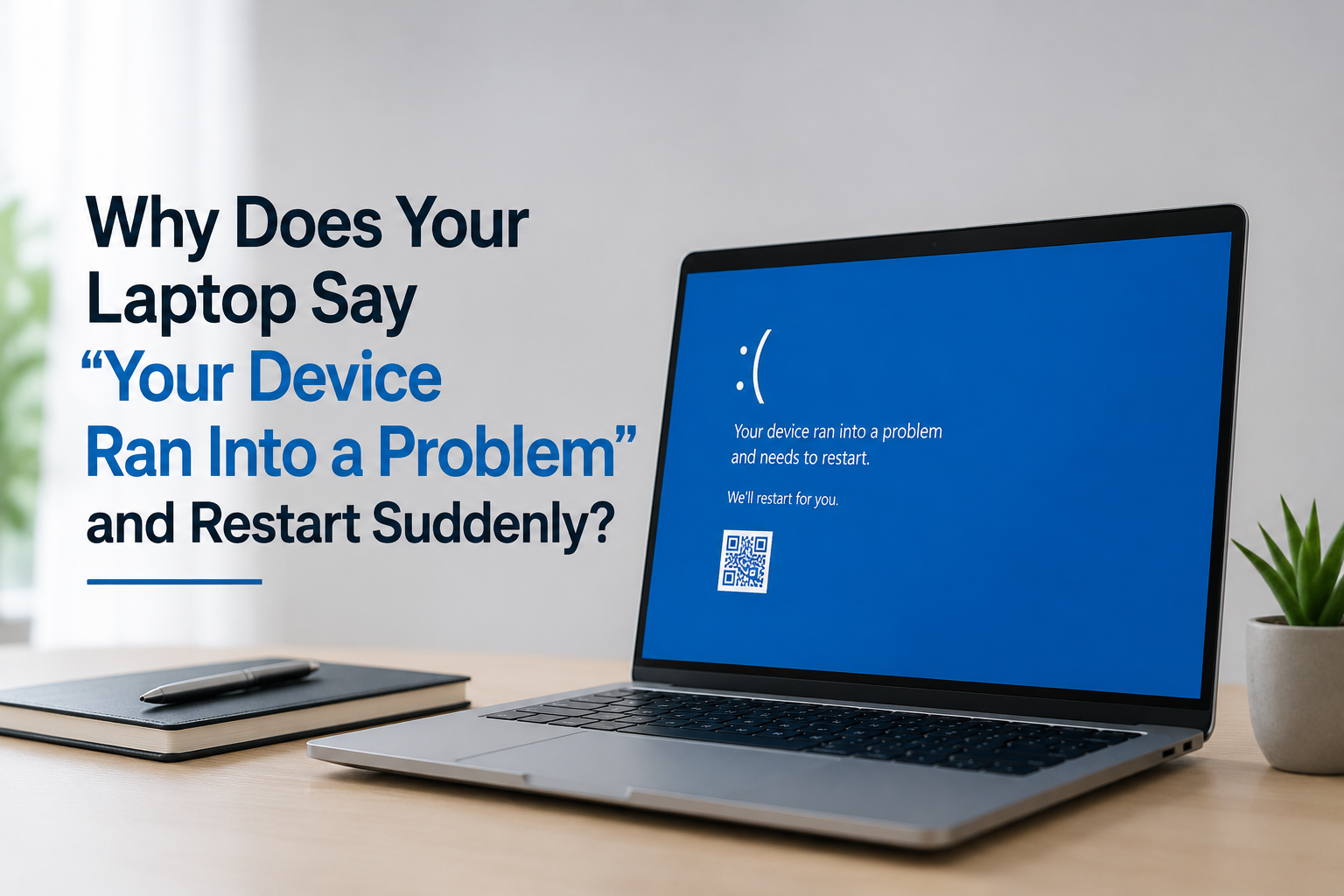
You are working on your laptop, everything seems fine, and then suddenly the screen freezes. A message appears saying, “Your device ran into a problem and needs to restart.” Before you even understand what happened, the laptop restarts.
It can be frustrating, especially when you are in the middle of important work. You may start wondering whether your laptop is damaged, whether a virus caused it, or whether your files are at risk.
The good news is that this message does not always mean your laptop has a serious hardware problem. It usually means Windows encountered an error that was serious enough to stop the system and restart it safely.
Understanding what causes these sudden restarts can help you figure out whether it was just a one-time issue or something that needs attention.
What Does “Your Device Ran Into a Problem” Mean?
The message is associated with a Windows stop-code error, commonly known as a blue screen error.
Windows uses this process when it detects a serious problem that could make continuing to run the system unsafe. Instead of allowing the computer to keep operating in an unstable state, it stops the system, gathers information about the error, and then usually restarts.
You may also see a STOP CODE on the screen. This code can provide a useful clue about what caused the crash.
For example, you might see codes related to memory, drivers, or other system components. The exact message can vary depending on what went wrong.
Why Does Your Laptop Suddenly Restart?
There is no single reason for these unexpected restarts. Several different issues can trigger them, and sometimes it can take a little investigation to find the exact cause.
Driver Problems
Drivers help Windows communicate with your laptop’s hardware. Your graphics card, Wi-Fi adapter, audio system, printer, and many other devices rely on drivers to work properly.
If a driver is outdated, corrupted, incompatible, or recently updated incorrectly, it can cause Windows to crash.
This is especially worth checking if the problem started soon after installing or updating a driver.
Software or Windows Issues
Sometimes a software application can conflict with another part of the system. A recent Windows update or newly installed program may also expose an existing compatibility problem.
Think about what changed recently. Did you install a new application? Update Windows? Add a browser extension? Install a new device?
Small changes can sometimes explain why a problem suddenly appears.
Hardware Problems
Hardware can also be responsible for repeated system crashes.
Problems with memory, storage, graphics hardware, or another internal component can cause Windows to stop unexpectedly. Newly installed hardware can also create compatibility issues if the system is not working properly with it.
This does not mean every blue screen is a sign that your laptop needs new hardware. However, repeated crashes should not be ignored.
Low Storage Space
A system drive that is almost full can also create problems for normal Windows operation.
Windows needs available space for temporary files, updates, system operations, and other processes. Check how much free space is available on your main drive and remove files or applications you no longer need when space is very limited.
Memory Issues
Problems with RAM can sometimes cause crashes that look completely random.
Your laptop may work normally for hours and then suddenly freeze or restart. In some cases, you may notice different STOP CODE messages at different times.
Windows includes a built-in memory testing tool that can help check whether your RAM may be causing the problem.
What Should You Do After Your Laptop Restarts?
If the crash happened only once and your laptop is now working normally, there may be no reason to panic.
Still, take note of what happened. The most useful detail is the STOP CODE shown on the error screen.
Also think about what you were doing immediately before the restart.
Were you:
- Opening a particular application?
- Watching a video?
- Playing a game?
- Connecting a USB device?
- Installing an update?
- Working with many programs at once?
Finding a pattern can help you identify the cause much faster.
Easy Ways to Troubleshoot the Problem
Update Windows
Start by checking whether Windows has any pending updates. System updates often include fixes for bugs, compatibility problems, and system stability issues.
Go to Settings > Windows Update and check for available updates.
Check Your Device Drivers
Open Device Manager and look for devices with warning symbols.
Pay special attention to hardware that was recently installed or updated. Updating or reinstalling a problematic driver can sometimes stop recurring crashes.
Free Up Storage Space
Check the available space on your main drive. If it is nearly full, remove large files you no longer need, uninstall unused applications, and clear unnecessary temporary data.
You do not need to keep your drive completely empty, but having some breathing room is important.
Disconnect New Hardware
Did the crashes begin after connecting a new keyboard, USB device, external drive, monitor, or another accessory?
Disconnect the recently added device and see whether the problem happens again.
This can be a simple way to determine whether new hardware is involved.
Try Safe Mode
If your laptop keeps crashing, Safe Mode can be useful.
It starts Windows with a limited set of drivers and services. If the laptop works normally in Safe Mode but crashes during regular startup, that can point toward a driver, application, or startup-related problem.
What If Your Laptop Keeps Restarting?
A one-time restart is very different from a laptop that crashes every day.
If the same problem keeps happening, do not simply continue restarting the computer and hope it disappears. Repeated crashes can indicate an unresolved software, driver, memory, storage, or hardware issue.
Start by recording the STOP CODE each time the problem appears. If the code is always the same, it can provide an important clue.
It is also useful to notice whether the crash happens during a specific activity. For example, if your laptop only crashes while playing games, using video-editing software, or connecting to a particular device, that pattern can narrow down the possible causes.
If Windows cannot start normally, recovery options such as Safe Mode, System Restore, or other Windows recovery tools may be useful depending on the situation.
Before using more advanced recovery options, make sure important files are backed up whenever possible.
Can a Sudden Restart Damage Your Laptop?
Not necessarily.
A Windows crash does not automatically mean your laptop has been permanently damaged. The error may be caused by something temporary, such as a driver problem or software conflict.
However, repeated crashes should not be treated as normal.
If the laptop continues showing the same error, becomes unusually slow, freezes frequently, or starts crashing during basic tasks, it is worth investigating the underlying problem.
How Can You Prevent These Problems?
There is no way to completely guarantee that your laptop will never experience a system crash, but a few basic habits can reduce avoidable problems.
Keep Windows and important drivers updated. Avoid installing software from unreliable sources, and remove programs you no longer use.
Also keep enough free storage space and maintain regular backups of important documents, photos, and work files.
If you recently installed new hardware or software, pay attention to whether crashes start afterward. Knowing what changed can make troubleshooting much easier.
When Should You Get Professional Help?
If the laptop keeps showing “Your device ran into a problem and needs to restart”, especially if it happens frequently or prevents Windows from starting normally, it may be time to get professional help.
A technician can perform deeper checks on the system and determine whether the problem is related to memory, storage, drivers, Windows, or another hardware component.
Final Thoughts
Seeing “Your device ran into a problem and needs to restart” can be scary, but it does not automatically mean your laptop is broken.
The message simply tells you that Windows encountered a serious system error and had to stop and restart. The real challenge is finding out what caused that error.
Start with the basics. Check the STOP CODE, look at recent software or hardware changes, update Windows and drivers, check your storage, and watch for patterns.
If it happens only once, you may never see it again. But when the same problem keeps coming back, finding the actual cause is much better than simply restarting the laptop every time.
Still seeing the error again and again? Getting help from a computer professional can make it easier to find and fix the underlying problem.
Frequently Asked Questions
Q1. Why does my laptop say “Your device ran into a problem” and restart?
Answer:
It usually means Windows encountered a serious system error that it could not safely continue running through. The cause can be related to drivers, software, memory, storage, or other hardware components.
Q2. Is “Your device ran into a problem” a virus?
Answer:
Not necessarily. The message itself is a Windows system error and does not automatically mean your laptop has a virus. Driver conflicts, software issues, and hardware problems can also cause the error.
Q3. How can I stop my laptop from restarting suddenly?
Answer:
Start by checking the STOP CODE that appears during the crash. Then update Windows and your drivers, check available storage space, disconnect recently added hardware, and look for any software or system changes that happened before the problem started.
Q4. Should I be worried if my laptop shows this error once?
Answer:
A single unexpected crash does not always indicate a serious problem. If the laptop works normally afterward and the error does not return, it may have been an isolated incident. Repeated crashes, however, should be investigated.