

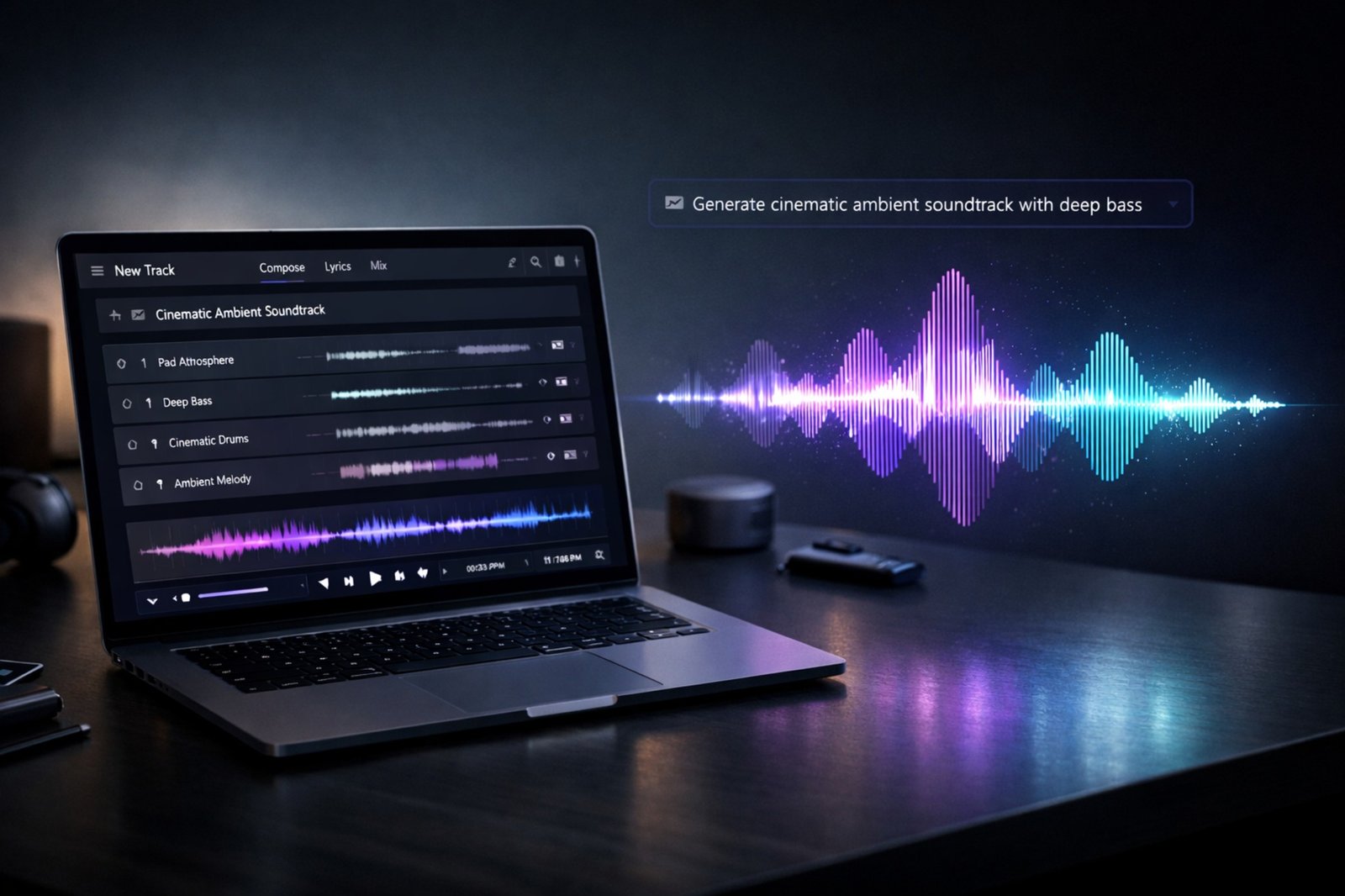
If you’ve ever wanted to create studio-quality music without touching an instrument, this Udio AI tutorial is exactly what you need. Udio is one of the most powerful AI music generators available right now, and it goes far deeper than most people realize. Whether you’re a complete beginner or a seasoned music producer looking to add AI to your workflow, This Udio AI tutorial walks you through every layer from your first prompt to a fully extended, stem-separated track ready for a DAW.
What Is Udio AI? A Tutorial Starting Point
Udio is a generative audio synthesis platform that turns text prompts into fully produced songs. It handles melody, harmony, rhythm, and vocals all from a natural language description. Unlike basic tools, Udio gives you real creative control through advanced settings, structure tags, and a manual mode that professionals actually use.
The platform works well for content creators, film composers, podcast producers, and anyone building a royalty-free music library. Since 2024, Udio has updated significantly and in 2026, the V4.5 model represents a major leap in vocal clarity and arrangement quality.
How to Get Started with Udio AI (Free vs. Paid)
First, head to udio.com and create an account. Udio offers a free tier with limited monthly credits, plus paid plans that unlock more generations and commercial rights.
Here’s a quick breakdown of how credits work:
- Each generation costs a set number of credits depending on length and quality settings.
- Free plan users receive a monthly credit refresh enough to experiment but limited for heavy use.
- Pro and Premier plans offer significantly more credits and unlock WAV export, priority generation, and commercial licensing.
Tip: For more tools, resources, and music production guides, visit LegitLoaded a dedicated hub for music creators.
Udio AI Tutorial: Manual Mode vs Auto Mode Explained
No Udio AI tutorial is complete without covering Manual Mode, because this is where casual users and professionals split apart
Auto Mode lets Udio fill in the musical details based on your prompt alone. It’s fast and convenient. However, it often produces inconsistent results between generations.
Manual Mode puts you in the driver’s seat. You can control:
- Prompt Strength – how closely the output follows your text description
- Lyric Strength – how firmly the model sticks to your written lyrics
- Context Length – how much prior audio context influences the next section
- Seed Number – lock in a specific audio seed to reproduce similar results
Professional producers almost always use manual mode. It reduces randomness and gives you repeatable, refinable results – which is essential when building a full track piece by piece.
Udio Prompt Engineering: Writing Prompts That Actually Work
Your prompt is the foundation of everything. Weak prompts produce generic output. Strong, specific prompts produce music that sounds intentional.
Structure Your Prompts Like This
Use this three-part formula:
- Genre + Subgenre – “cinematic orchestral, epic trailer music”
- Mood + Energy – “intense, building tension, dramatic crescendo”
- Instrumentation – “full strings, brass stabs, deep percussion, no vocals”
Use Structure Tags
Udio supports bracket-based structure tags that tell the model where you are in the song:
- [Intro]
- [Verse]
- [Chorus]
- [Bridge]
- [Outro]
Place these at the start of your lyrics or prompt section. This dramatically improves melodic and rhythmic alignment across a full song.
Avoid These Common Prompt Mistake
- Using vague descriptors like “cool” or “good”
- Overloading a prompt with 10+ conflicting genres
- Forgetting to specify BPM when tempo matters
- Skipping timbre descriptors (e.g., “warm analog synth” vs. just “synth”)
How Udio Inpainting Works
This section of the Udio AI tutorial focuses on inpainting arguably the most underrated feature on the entire platform.
Here’s how to use it:
- Open your generated track in the editor.
- Highlight the section you want to fix (for example, a mispronounced lyric or a muddy instrument passage).
- Write a targeted prompt describing what that section should sound like.
- Run the inpaint Udio regenerates only that highlighted segment while keeping everything else intact.
This technique saves enormous time. Moreover, it lets you preserve a great chorus while fixing a problematic verse without starting over.
Extending Your Songs Beyond 32 Seconds
By default, Udio generates short clips. However, you can build full-length tracks using the extension tool sometimes called outpainting.
The “Brick Method” for Long Tracks
Think of your song as a wall of bricks:
- Generate your opening section (intro/verse) and save the seed.
- Use “Extend” to add the next 30-second section.
- Keep extending forward, adjusting your structure tags as you go.
- Repeat until you reach your target length.
Using this method, producers have built tracks exceeding 10 minutes. Additionally, you can extend backward adding a pre-intro or a cold open which gives you full arrangement control.
Udio Stem Separation and DAW Integration
Once you’re happy with your track, stem separation lets you split the audio into individual components:
- Vocals
- Drums
- Bass
- Melody / Instruments
You can then import these stems into a Digital Audio Workstation (DAW) like Ableton Live, FL Studio, or Logic Pro. This is where human-AI collaboration gets genuinely exciting you take Udio’s raw stems and add real performance, EQ, compression, and mastering on top.
Currently, Udio exports WAV files on paid plans. MIDI export is not natively supported yet, but third-party audio-to-MIDI tools like AbletonNoteDetection can bridge this gap.
Udio vs. Suno in 2026: Which Is Better?
Both platforms have evolved significantly. Here’s an honest comparison:
| Feature | Udio | Suno |
| Vocal Quality | More natural timbre | Good, slightly robotic at edges |
| Manual Control | Deeper parameter control | More beginner-friendly |
| Lyric Accuracy | Stronger with formatting tips | Can drift from input |
| Stem Separation | Available | Limited |
| Pricing (2026) | Competitive tiers | Similar structure |
A key reason this Udio AI tutorial emphasizes Manual Mode is exactly what separates Udio from Suno in 2026
Commercial Rights and Copyright with Udio
This is a crucial topic. Udio’s paid plans grant you commercial licensing rights to music you generate. This means you can:
- Monetize YouTube videos featuring Udio tracks
- Sell music on platforms like Bandcamp or Spotify (via a distributor)
- Use tracks in paid client projects
However, always review Udio’s current Terms of Service directly at udio.com/terms before monetizing. Licensing terms can update, and your plan tier determines what rights you hold.
For a deeper look at AI music licensing, Music Business Worldwide regularly covers evolving industry standards.
Udio AI Tutorial Tips: Getting Consistently Better Results
- Fix robotic vocals by lowering Lyric Strength slightly and re-running the section
- Use syllable stress markers in lyrics to control phrasing rhythm
- Upload a reference audio track to guide the style via audio-to-audio generation
- Lock your seed number once you find a great result regenerating with the same seed stays close to the original
- Batch generate 3–4 variations and pick the strongest one before extending
Udio offers a free plan with a monthly credit allowance. You can sign up at udio.com with your email or Google account. Free users can generate short clips, experiment with prompts, and access the basic editor. However, WAV export and commercial rights require a paid subscription. It’s a solid way to learn before upgrading.
In 2026, Udio generally produces more natural-sounding vocals, especially for complex lyrical phrasing. Suno remains faster for quick generation with less setup. If you want fine-grained control over vocal timbre and syllable stress, Udio’s manual mode gives you more options. For beginners who just want fast results, Suno is still competitive.
Udio inpainting lets you fix a specific section of a generated track without regenerating the entire song. You highlight the problematic audio segment in the editor, write a targeted prompt for that section, and run the inpaint. Udio regenerates only the highlighted area while keeping the rest of the track intact saving time and preserving quality.
Yes, if you’re on a paid plan that includes commercial licensing rights. You’ll need to distribute your track through a music distributor like DistroKid or TuneCore. Always review Udio’s current Terms of Service to confirm your plan’s specific rights, as these terms can change with platform updates.
Use Udio’s built-in extension tool (outpainting). Generate your initial clip, then click “Extend” to add the next section. Update your structure tag (e.g., from [Verse] to [Chorus]) in the prompt for each new section. Repeat the process, extending forward section by section, until you’ve built a complete arrangement. This “brick method” can produce tracks well over five minutes.
The most effective Udio structure tags are: [Intro], [Verse], [Pre-Chorus], [Chorus], [Bridge], [Solo], and [Outro]. Place them at the beginning of your lyrics or prompt for each section. These tags guide the model’s melodic and rhythmic transitions, resulting in more coherent, song-like arrangements instead of repeating loops.
Commercial rights are included in Udio’s paid subscription plans. Once subscribed, any track you generate using your account falls under the commercial license described in Udio’s Terms of Service. This typically covers monetized video content, sync licensing, and digital distribution. Free plan generations do not carry commercial rights, so always verify your plan level before monetizing.