

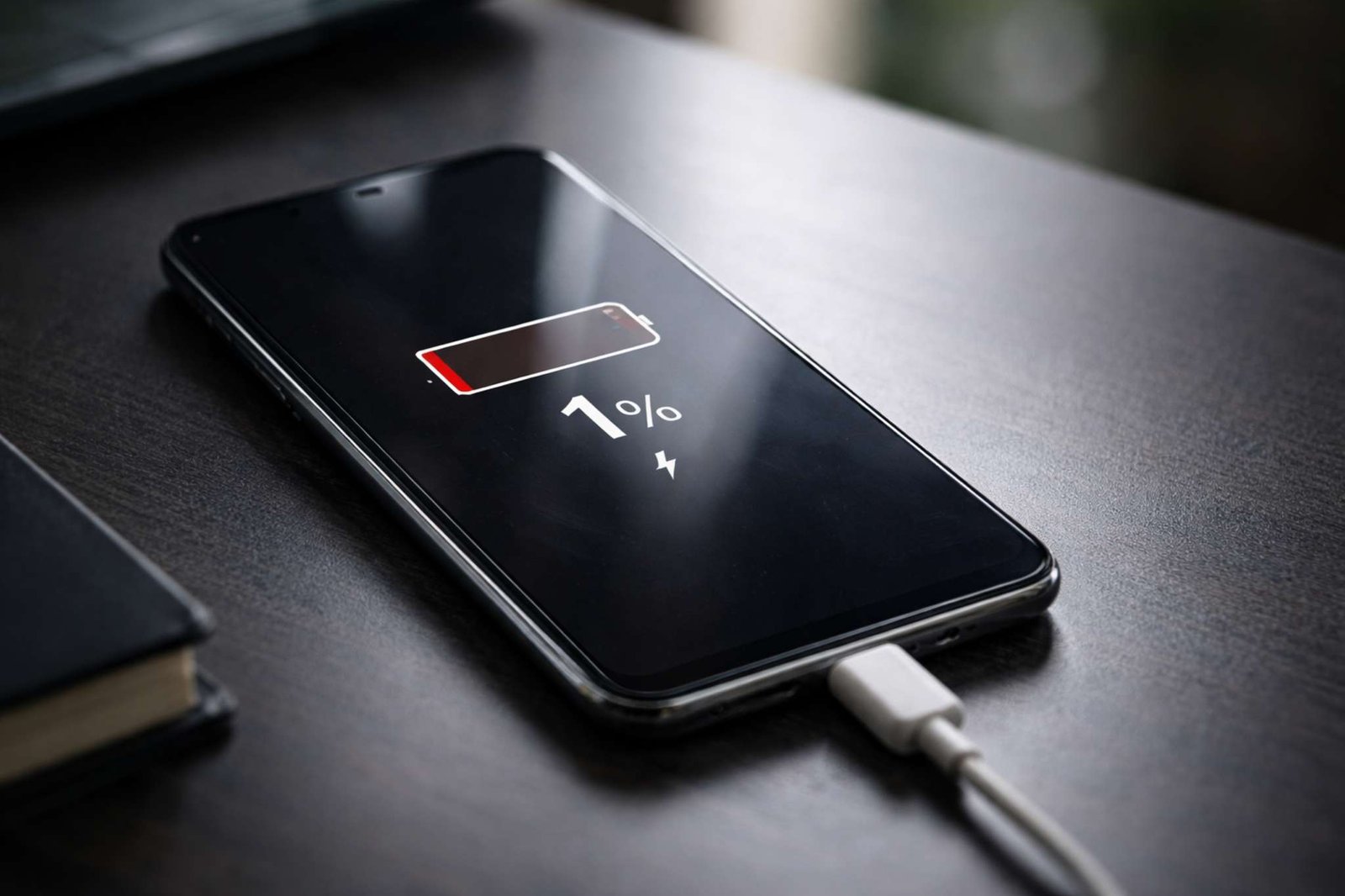
You plug in your Android phone, the lightning bolt icon appears in the status bar, but the battery percentage is completely frozen or worse, it keeps dropping. If this sounds familiar, you are not alone. This exact problem is reported across Samsung Galaxy, Google Pixel, OnePlus, Xiaomi, and nearly every other Android device. The good news: this is one of the most solvable phone problems there is, and the android phone shows charging but battery not increasing fix is almost always something you can do at home.
This guide covers every verified software and hardware cause, with step-by-step fixes based on real user reports, Samsung Community forums, iFixit documentation, and Android support resources.
This guide is based on verified technical causes, real user-reported fixes from Samsung Community forums, XDA Developers, and iFixit, and tested solutions from Android support documentation.
Why Is This Happening? The Real Causes
1. Your Screen and Apps Are Using More Power Than the Charger Is Putting In
This is the most common cause and the most misunderstood. Your charger sends power into the battery, but your phone is also consuming power at the same time. If you are using your phone actively scrolling, streaming, gaming, or navigating the screen alone can draw between 1W and 4W of power. If your charger is a generic 5W adapter and your phone is actively running GPS, background sync, and a bright display, your phone says charging but battery going down screen on because consumption is literally outpacing input. The charger is working fine. The math just does not work in your favor.
2. Battery Calibration Has Drifted
The software on your phone tracks battery level by reading voltage and current data over time. After hundreds of charge cycles, this tracking can fall out of sync with the battery’s actual chemical state. The result is a percentage that appears frozen, jumps unexpectedly, or refuses to move while plugged in. This is a documented behavior on older Android devices and phones with heavy usage histories. It does not mean the battery is failing it means the software measurement needs a reset.
3. Optimized or Adaptive Battery Charging Is Intentionally Stopping the Charge
This is the cause that catches the most people off guard. If your phone is stopping at exactly 80% or 85% and says charging but percentage not going up, a built-in battery protection feature is almost certainly the reason not a fault.
Samsung has evolved this feature significantly across recent software versions. On One UI 6, Battery Protection was fixed at 80%. On One UI 7, Samsung now offers three modes under Battery Protection: Basic (charges to 100%, then cycles between 95% and 100%), Adaptive (stops at 80% at night, then charges fully before your predicted wake time), and Maximum (lets you manually set a cap of 80%, 85%, 90%, or 95%). If you are on One UI 7 and your android charges to 80 then stops and says charging, Maximum mode with the limit set to 80% is the most likely cause.
Google Pixel devices have a similar feature called Adaptive Charging, which holds the phone near 80% overnight and completes the charge before your typical wake time. This behaviour is normal and intended it’s the optimized battery charging stuck won’t charge past 80 situation that confuses many users.
4. The USB-C Moisture Sensor Has Triggered – Even Without Water
Android USB-C moisture detection works by measuring electrical resistance across the pins inside the charging port. When it detects a reading that resembles what water would create, it blocks charging to prevent a short circuit. The problem is that the sensor can be fooled. Pocket lint, high humidity, a slightly damp cable, or even salt residue from sweat can trigger the alert. The android usb-c moisture detected showing charging scenario where the icon appears but nothing actually charges is a very common false positive that has a straightforward software fix.
5. A Software Bug After an OS Update
After a major Android update, it is normal for charging behaviour to temporarily change. In documented cases on the Samsung Community forums, Galaxy A15 users reported that after receiving the Android 15 / One UI 7 update in June 2025, fast charging became unreliable stopping after charging only 7-8% before cutting out. Multiple users confirmed this was caused by the update, and Samsung released a patch approximately 17 days later. This pattern of android battery not moving while charging after android 14 or Android 15 updates has appeared on Samsung A-series, S-series, and some Pixel devices following major OS updates. Background processes that run immediately after an update recompiling apps, rebuilding caches – also cause heavy temporary battery consumption for 24 to 48 hours.
6. A Weak, Counterfeit, or Wrong-Wattage Charger
A generic 5W adapter charging a modern Android phone with a large display and active background apps will often lose the power race. Counterfeit cables are a separate problem they may show the charging icon while delivering barely any current. If the cable is frayed, the connector is loose, or the charger did not come from a verified source, the cable or adapter is the first thing to replace.
7. Lint Compressed Into the USB-C Port
This is the hardware cause that is most often overlooked. USB-C ports are used dozens of times per day. Over weeks and months, pocket lint compresses into the back of the port until the cable can no longer make full contact with the pins. The phone may still display the charging icon because a partial connection exists but actual current transfer is minimal. This is a physical problem that no software fix will solve.
Quick Triage – Do This First (2 Minutes)
Before trying any of the fixes below, run this simple test:
- Plug the phone in and turn the screen completely off. Wait 5 minutes. If the percentage moves, your problem is power draw from the screen and apps – not the charging hardware itself.
- Switch from a laptop USB port to a wall outlet. Laptop USB ports typically deliver 500mA to 900mA. That is nowhere near enough to charge most modern phones while the screen is on.
- Try a different cable. Swap it for the original cable that came with the device if you have it.
- Check whether you see a moisture warning icon or a lightning bolt with an exclamation mark. If you see either, go directly to Fix 4 or Fix 3 below.
Fix 1: Charge with the Screen Off or in Airplane Mode
This is the fastest test and often the complete fix. Turn the screen off after plugging in, or enable airplane mode to cut off Wi-Fi, 5G, and background sync. These steps reduce power consumption enough that a standard charger can actually gain ground on the battery level.
If your phone says charging but battery going down screen on during active use, this confirms that your charger’s output wattage is simply not enough to beat what the screen and apps are consuming. The fix is either to charge with the screen off or to use a higher-wattage charger.
Fix 2: Disable Optimized or Adaptive Battery Charging
If your phone is stopping at exactly 80% or 85%, a battery protection setting is almost certainly the cause. Here are the exact navigation paths for each platform:
Samsung One UI 6:
- Settings > Battery
- Toggle off “Protect Battery”
Samsung One UI 6.1 and One UI 7:
- Settings > Battery > Battery Protection
- Turn off the toggle, or in One UI 7, tap “Maximum” and raise the limit – or disable Battery Protection entirely
Google Pixel:
- Settings > Battery > Adaptive Preferences
- Disable “Adaptive Charging”
Xiaomi, OnePlus, OPPO:
- Settings > Battery
- Look for “Battery Protection,” “Optimized Charging,” or “Charge Limit” and disable it
If your samsung shows charging but percentage not going up at 80% or 85%, disabling this setting will immediately allow the phone to charge past that ceiling.
Fix 3: Clean the USB-C Port
Lint compression is one of the most common non-obvious hardware causes of charging issues. When lint packs tightly into the back of the port, the cable plug sits slightly higher than it should and makes poor contact with the pins.
Safe cleaning steps:
- Power off the phone before cleaning.
- Shine a flashlight directly into the port to inspect for visible debris.
- Use a wooden toothpick – never metal, which can damage pins or cause a short.
- Work gently along the back wall of the port, scraping debris toward the opening.
- Do not use cotton swabs – they leave fibers behind.
- If using compressed air, hold the can at least 6 inches away and use short bursts. Tilting the can or holding it too close can spray liquid propellant directly into the port.
After cleaning, try the original cable again. Many users find the cable now seats noticeably more firmly and charging resumes normally.
Fix 4: Clear the USB Settings Cache
This fix addresses a software glitch where the system has cached an incorrect state either a false moisture warning or a false charging signal. It is documented by Samsung and widely confirmed by users on iFixit and Android forums.
Steps:
- Settings > Apps
- Tap the filter icon (top right) > select “Show System Apps” > confirm
- Scroll down or search for “USB Settings” (on some devices listed as “USBSettings”)
- Tap Storage > Clear Cache
- Restart the phone and test
As a parallel fix, disabling fast charging can also bypass a false android usb-c moisture detected showing charging alert. Go to Settings > Battery > Charging Settings > turn off Fast Charging. Once the phone is charging normally, you can re-enable it.
If you need to charge urgently while this issue persists, wireless charging is safe to use the moisture detection system only disables the USB-C port, not the wireless charging coils.
Fix 5: Recalibrate the Battery
Battery calibration is not a hardware repair. It is a correction of the software’s model of what the battery can hold. Over many charge cycles, the operating system’s charge tracking can drift, causing the displayed percentage to freeze or behave erratically. This is how to recalibrate android battery won’t charge properly situations that are purely a measurement problem:
- Use the phone normally until it powers off completely from battery depletion.
- Charge the phone uninterrupted to 100% with the phone off if possible.
- Leave it at 100% for at least one hour after reaching full charge.
- Repeat this full drain-to-full-charge cycle 2 to 3 times over several days.
This process does not fix a damaged battery. It only corrects the software’s reading. If the percentage continues to jump or freeze after three recalibration cycles, the battery itself may need replacement.
Fix 6: Wait Out the Post-Update Optimization Window
If your charging problem started within 24 to 48 hours of installing a major Android update, background optimization is likely the cause. After a large update, Android runs intensive background tasks: recompiling every app for the new OS version, rebuilding search indexes, and regenerating cached data. This consumes significant battery power and can make it appear that the phone is barely charging or not charging at all.
The fix is simply to leave the phone charging with the screen off and minimal use for 24 to 48 hours. The background work completes on its own. If the problem continues beyond that window, check whether fast charging was accidentally disabled by the update this happens on some Samsung devices after major updates. Go to Settings > Battery > Charging Settings and confirm Fast Charging is enabled.
This is consistent with documented reports of android battery not moving while charging after android 14 and Android 15 updates across multiple Samsung and Pixel devices.
Fix 7: Test with a Different Charger and Cable
Wattage mismatch is a real and underestimated cause. A phone that supports 25W or 45W fast charging, when paired with a 5W USB-A adapter, may not be able to outpace screen-on power consumption at all. Even with the screen off, a 5W charger may take 4 to 6 hours to fully charge a phone designed for fast charging.
Testing steps:
- Use the original charger that came in the box with the device.
- If that is unavailable, use a USB-C PD (Power Delivery) charger from a verified brand rated at or above your phone’s supported wattage.
- Test with at least two different cables. Counterfeit USB-C cables can pass just enough current to show the charging icon while delivering almost no usable power to the battery.
Fix 8: Use Wireless Charging as a Bypass
If you are seeing the moisture detected error and need to charge immediately, wireless charging is a verified safe workaround. The moisture detection system disables only the USB-C port. The wireless charging hardware is on a completely separate circuit and is not affected. Place the phone on a compatible wireless charger while you work on the port cleaning or cache clearing steps above.
When It Is a Hardware Problem
The eight fixes above cover the vast majority of reported cases. If none of them work, consider these hardware indicators:
- Battery health below 80% (check via Samsung: Settings > Device Care > Diagnostics > Phone Diagnostics > Cable Charging, or via AccuBattery on any Android device)
- A percentage that drops non-linearly for example, from 50% to 10% within minutes
- Visible bent or corroded pins inside the USB-C port when inspected under a flashlight
- The phone only charges when turned completely off
- Actual moisture or liquid has entered the device internally
If any of these are present, visit an official Samsung or Google service center, or a reputable repair shop for a battery replacement or port assessment. A charging IC failure the chip on the motherboard that manages charging also requires professional board-level repair and cannot be resolved through software.
The Three Most Common Real-World Causes
In practice, the majority of users who report this problem solve it with one of three fixes: turning the screen off while charging resolves the power draw issue; disabling Samsung’s Battery Protection or Google’s Adaptive Charging resolves the 80% cap; and clearing the USB settings cache resolves false moisture detection after an update. A frozen battery percentage is in most cases a software or settings issue, not a sign the phone is damaged or failing.
Try the fixes in order starting with the fastest screen-off test, cable swap, port inspection before attempting cache clearing or recalibration. Most users are done after the first or second step. For more such updates go through Legitloaded.
FAQ
Q: Why is my Samsung phone stuck at 80% even though it says charging?
A: This is almost certainly Samsung’s Battery Protection feature, which is designed to extend long-term battery lifespan by stopping charging before the battery reaches full capacity. On One UI 7, it can be found at Settings > Battery > Battery Protection. You can either disable the toggle entirely or, in Maximum mode, raise the limit to 85%, 90%, or 95%. On One UI 6, the cap was fixed at 80% with no adjustable range. Turning off Battery Protection will immediately allow the phone to charge past 80%.
Q: My phone battery is going down even when plugged in what does that mean?
A: It means power consumption from your screen and active apps is exceeding what your charger is supplying. This is especially common with low-wattage chargers (5W or 10W) paired with phones that have large, bright screens. Try turning the screen off after plugging in, enabling airplane mode to reduce background activity, or switching to a higher-wattage charger that matches your phone’s supported charging speed.
Q: I see the moisture warning but my phone is completely dry. How do I fix it?
A: The moisture sensor measures electrical resistance across the USB-C port pins and can be triggered by lint, dust, humidity, or a software glitch not just water. Start with the USB settings cache clear: Settings > Apps > Show System Apps > USB Settings > Storage > Clear Cache, then restart. Also try disabling fast charging temporarily, as this has bypassed false moisture alerts for many Samsung users. If you need to charge immediately, wireless charging is safe to use while the USB-C port issue is being resolved.
Q: My phone charges normally but stopped after an Android 14 or Android 15 update. Is this a bug?
A: Yes, this is a documented pattern. On Samsung Galaxy A15 devices, the Android 15 / One UI 7 update released in June 2025 caused fast charging to stop working unreliably for a number of users. Samsung acknowledged the reports and released a patch. On other devices, the post-update background optimization window (24 to 48 hours) can make charging appear to stall. If the issue persists beyond two days after the update, check that fast charging was not accidentally reset to off in Settings > Battery > Charging Settings.
Q: How do I know if my Android battery needs to be replaced?
A: The clearest signs are: battery health below 80% (measurable via Samsung’s built-in diagnostic tool at Settings > Device Care > Diagnostics, or via the AccuBattery app on any Android), a percentage that drops sharply and non-linearly (for example, jumping from 50% directly to 10% within minutes of use), or a phone that only charges when powered completely off. A battery that swells or causes the back cover to bulge is an immediate safety concern and should be addressed at a service center without delay.